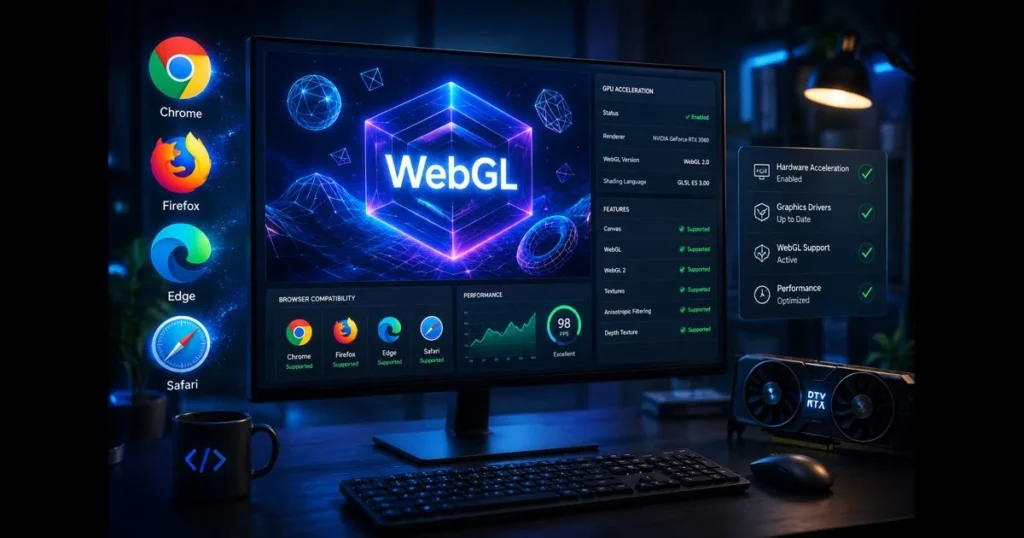
WebGL powers interactive 3D graphics directly in your browser, from product configurators to scientific visualizations. If you’re trying to enable WebGL and encounter issues, don’t panic—browsers can disable it due to hardware, settings, or privacy extensions. This guide will help you check support, activate it in Chrome, Firefox, and Edge, and troubleshoot any persistent problems. You’ll also find tips for optimizing WebGL performance, ensuring those rich visual experiences load smoothly.
The best part? Most fixes take just a few clicks. The same principles—hardware acceleration, modern drivers, and clean browser profiles—apply across platforms. (See: WebGL – Wikipedia.)
- Understanding WebGL
- Checking WebGL Support
- Enabling WebGL in Chrome
- Enabling WebGL in Firefox
- Enabling WebGL in Edge
- Enabling WebGL in Safari
- WebGL Not Supported Fix
- Optimizing Performance with WebGL
- Conclusion
Understanding WebGL
Definition and Purpose of WebGL
WebGL (Web Graphics Library) is a browser API that enables websites to render 2D and 3D graphics using your computer’s GPU. It serves as the web’s bridge to hardware-accelerated graphics, built on a subset of OpenGL ES and exposed through the HTML5 canvas element. Related reading: flash compatibility check.
Running inside the browser without plugins, WebGL supports immersive experiences—3D maps, engineering models, virtual galleries, complex data dashboards—alongside ordinary web content. If you’ve heard about WebAssembly, it’s a low-level runtime that can complement WebGL for running heavy logic but isn’t necessary just for displaying WebGL content. Related reading: what is webassembly.
Importance of WebGL in Modern Web Applications
WebGL is essential for modern web apps, delivering smooth interactions where plain CSS or traditional canvas fall short. Think of a furniture retailer’s 3D viewer, a molecule editor for class, or a smoothly rotating map—these all rely on WebGL for responsive, high-fidelity graphics. Developers leverage WebGL as a foundation for libraries like Three.js or Babylon.js, powering everything from marketing sites to educational labs. Related reading: update browser.
Checking WebGL Support
How to Test if WebGL is Supported in Your Browser
Before changing any settings, confirm WebGL support with these quick checks:
- Visit get.webgl.org and look for a spinning cube. If it appears, WebGL 1 is active.
- Check webglreport.com for detailed capabilities.
- Use our site’s built-in compatibility check for a quick WebGL canvas detection.
These tools reveal whether WebGL is available, what renderer and driver are in use, and if the browser is falling back to software rendering.
Tools and Resources for Checking WebGL Compatibility
- chrome://gpu (Chrome) and edge://gpu (Edge): Reports on GPU features, including WebGL status.
- about:support (Firefox): Check the “Graphics” section for WebGL, compositor, and driver info.
- Vendor driver pages (Intel, AMD, NVIDIA) confirm your graphics drivers are up-to-date.
If a page indicates WebGL is disabled but reports show it’s hardware accelerated, the issue might be site-specific, such as blocked scripts or strict extensions.
Enabling WebGL in Chrome
Step-by-Step Guide to Turn on WebGL
- Open Chrome Settings > System > toggle on Use hardware acceleration when available. Restart Chrome when prompted.
- In the address bar, go to chrome://gpu. Confirm “WebGL” and “WebGL2” show as Hardware accelerated.
- If they’re blocked due to a driver issue, visit chrome://flags, search for “Override software rendering list,” enable it, relaunch, and recheck. Only use flags if you understand the risks; they can reduce stability.
- Check site permissions: click the lock icon in the address bar > Site settings. Ensure JavaScript is allowed and security tools aren’t blocking canvas or WebGL.
- Extensions can interfere with WebGL. Temporarily disable privacy extensions such as uBlock Origin, Privacy Badger, NoScript, or CanvasBlocker—or add a site exception (e.g., in uBlock Origin click the power button to disable on this site; in Privacy Badger move sliders to Allow). Then retest.
That’s how to enable WebGL in Chrome. If you were searching for enable WebGL Chrome, those steps cover most setups.
Troubleshooting Common Issues with WebGL in Chrome
- Driver quirks: Use your GPU vendor’s utility or site to install the latest stable driver, then update your browser and retest.
- Profile or cache conflicts: Try an Incognito window or create a new Chrome profile. Clearing cached files can also help.
- Remote Desktop/VMs: Many remote sessions block hardware acceleration. Test on the host machine instead.
- Advanced: In chrome://flags, the ANGLE backend option can influence stability on certain GPUs. If you changed it, reset it to Default.
Enabling WebGL in Firefox
Detailed Instructions for Enabling WebGL
- Open Firefox Settings > General > Performance. Check Use recommended performance settings and ensure Use hardware acceleration when available is enabled. Restart Firefox.
- Type about:support in the address bar and review the Graphics section for WebGL status.
- If WebGL is disabled, visit about:config, search for
webgl.disabled, and set it to false. If a driver blacklist is the issue, you might findwebgl.force-enabled—use this only as a last resort. - Test again at get.webgl.org and webglreport.com.
If you need the exact phrase for future reference, this is how to enable WebGL in Firefox with safe defaults first, followed by careful preference checks.
Fixes for WebGL Not Supported Errors in Firefox
- Use Help > Troubleshoot Mode to run Firefox without add-ons. If WebGL works there, re-enable extensions one by one.
- Check about:support for blocked drivers and install the newest graphics driver for your hardware.
- Privacy settings that modify canvas output can break some WebGL sites. Consider per-site exceptions instead of global changes.
- If you changed multiple about:config entries, reset them to defaults and re-enable only what you need.
Enabling WebGL in Edge
How to Enable WebGL in Microsoft Edge
- Open Edge Settings > System and performance > turn on Use hardware acceleration when available. Restart Edge.
- Visit edge://gpu and confirm WebGL/WebGL2 show as Hardware accelerated.
- If features are unavailable, go to edge://flags, search for “Override software rendering list,” enable it, then relaunch.
- Check site permissions and security tools as you would in Chrome, since Edge shares a Chromium base.
For those looking to enable WebGL Edge, these steps mirror the Chrome process, with Edge’s own settings labels.
Addressing WebGL Not Supported Issues in Edge
- Clear cached images and files in Settings > Privacy, search, and services.
- Disable strict tracking prevention on the specific site to see if it interferes with rendering.
- Install the latest graphics driver, then update your browser and operating system for best compatibility.
Enabling WebGL in Safari
How to Enable WebGL in Safari on macOS and iOS
- On macOS, WebGL is enabled by default. Open Safari > Settings (Preferences) > Advanced and check Show Develop menu in menu bar.
- From the Develop menu, make sure Disable WebGL and Disable WebGL 2 are unchecked. If either is enabled, click to turn it off.
- Optionally, in Develop > Experimental Features, verify that WebGL 2.0 is enabled on supported versions of Safari.
- Test at get.webgl.org and webglreport.com. If content blockers are active, disable them for the test site via Safari > Settings for This Website > uncheck Enable content blockers.
On iPhone or iPad (iOS/iPadOS), WebGL is on by default in Safari. To troubleshoot, go to Settings > Safari > Advanced > Experimental Features and ensure WebGL 2.0 is enabled on supported devices, then restart Safari.
Troubleshooting WebGL in Safari
- If you use extensions or content blockers, temporarily disable them or allow the site: Safari > Settings > Extensions, or click the “aA” button in the address bar > Website Settings.
- Update macOS/iOS and Safari to the latest version; WebKit updates often include WebGL-related fixes.
- If you changed Experimental Features previously, reset them to defaults from the same menu and retest.
WebGL Not Supported Fix
Common Reasons for WebGL Not Being Supported
Several factors can block WebGL, and most aren’t permanent:
- Hardware acceleration turned off in browser settings.
- Outdated or incompatible graphics drivers causing a browser blocklist entry.
- Remote Desktop/virtual machines that lack GPU passthrough.
- Enterprise policies disabling GPU features.
- Privacy extensions that disable canvas or WebGL to hinder fingerprinting (for example, uBlock Origin with strict filter lists, Privacy Badger, NoScript, or CanvasBlocker).
- Older hardware that only supports minimal features or fails stability checks.
Sometimes it’s as simple as a single extension. Other times, a driver refresh is needed.
Solutions and Fixes for Troubleshooting WebGL
- Enable hardware acceleration and restart the browser.
- Install the latest graphics driver from your GPU vendor, then update your browser to the latest version.
- Test with extensions off (Incognito/Private mode or Troubleshoot Mode in Firefox) and re-enable selectively.
- Configure privacy extensions for compatibility: in uBlock Origin, disable blocking on the affected site (power button) or add an exception; in Privacy Badger, move sliders to Allow for the site; in NoScript, allow scripts for the domain and permit WebGL/canvas; in CanvasBlocker, add a site exception or disable API protection for that site. Reload afterward.
- Check chrome://gpu, edge://gpu, or about:support for blacklists; override via flags only if you accept potential instability.
- Try a different browser to isolate whether the issue is browser-specific or system-wide.
- If on a laptop, plug into power and disable battery saver; some systems throttle GPU features to conserve energy.
For a succinct WebGL not supported fix, combine a clean profile, hardware acceleration, fresh drivers, and a verified test page. This approach resolves most cases.
Optimizing Performance with WebGL
Best Practices for Improving WebGL Performance
You’ve activated WebGL—now keep it running smoothly. Start by reducing contention: close heavy tabs, quit GPU-intensive applications, and monitor system thermals. Overheated or power-throttled systems will stutter regardless of settings.
- Keep graphics drivers and your browser current for the latest optimizations.
- Prefer WebGL 2 content when available; it often yields better performance and features on supported hardware.
- If you previously forced a specific ANGLE backend, return it to Default to let the browser choose the most stable path.
- High-DPI displays can be demanding—if a site offers a quality slider, consider a slightly lower resolution scale.
- Developers: Use compressed textures, instancing, and batched draw calls for optimal WebGL performance.
- Developers: If you’re building with popular libraries like Three.js or Babylon.js, follow their performance guides and profiling tools, keep to the latest stable releases, and enable texture compression (e.g., KTX2/Basis), geometry instancing, and material/mesh reuse.
When in doubt, run a quick benchmark on webglreport.com and utilize your app’s built-in diagnostics. Small configuration tweaks can yield significant gains.
Hardware Requirements for Optimal WebGL Usage
WebGL 1 targets GPUs compatible with OpenGL ES 2.0; WebGL 2 aligns with ES 3.0. Most modern laptops and desktops qualify, though older integrated graphics may struggle with complex scenes.
- A recent integrated or discrete GPU with active vendor support.
- Updated drivers from Intel, AMD, or NVIDIA—not just the generic OS drivers.
- Sufficient system memory and VRAM for large textures and models.
- Stable power and cooling to avoid throttling under load.
If you’re considering a new machine for creative or scientific WebGL work, prioritize a GPU with current drivers over marginal CPU gains.
Conclusion
You’ve learned how to enable WebGL across major browsers: activate hardware acceleration, check the browser’s GPU report, and apply careful tweaks only when necessary. Whether you needed to enable WebGL in Chrome, Firefox, or Edge, the same principles apply—modern drivers, sensible privacy settings, and minimal flag changes.
Before diving into a 3D editor or data explorer, run a fresh test at get.webgl.org or use our built-in compatibility check for a quick overview. If you still encounter issues, revisit the WebGL troubleshooting steps here. A clean profile plus a browser update resolves many edge cases.
Ready to see WebGL in action? Enable it, reload a demo, and explore the possibilities. When you’re eager to push performance further, check out developer guides that combine WebGL with WebAssembly for heavy-duty simulations.
Frequently Asked Questions
What is WebGL and how do I enable it in my browser?
WebGL is a JavaScript API that allows rendering 3D graphics within any compatible web browser. To enable it, ensure that your browser is up-to-date and check your graphics settings to confirm that hardware acceleration is turned on.
Why is WebGL not working on my device?
WebGL may not work due to outdated graphics drivers, unsupported hardware, or browser settings. Make sure your graphics drivers are updated and verify that WebGL is enabled in your browser’s settings.
Can I enable WebGL on mobile devices?
Yes, most modern mobile browsers support WebGL. To enable it, ensure your device’s operating system and browser are updated to the latest versions.