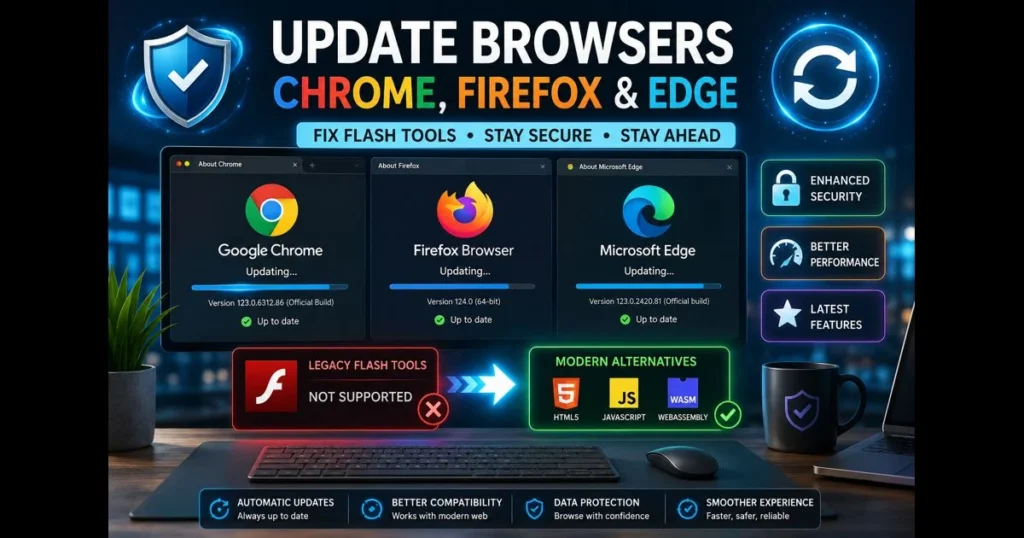
If you’ve been ignoring that nagging prompt to update your browser, consider this your wake-up call. Keeping your browser current is essential for protecting your data, preventing crashes, and enjoying the latest features that make browsing smoother. In this guide, we outline the steps to update Chrome, Firefox, Edge, Safari, and Opera. We’ll also cover legacy Flash tools and their modern replacements to help you maintain critical workflows safely today (in 2023) and as browsers evolve through 2026 and beyond. Related reading: browser flash support 2026.
Software can become outdated quickly. Security vulnerabilities are discovered, performance is refined, and compatibility improves with each release. A simple update can resolve glitches—like videos not playing, pages displaying incorrectly, or extensions malfunctioning. If you’re struggling with issues that once worked seamlessly, an update is often the easiest solution. For those relying on older content, we’ll direct you to safe alternatives and our built-in flash_checker to evaluate what still functions and what needs replacing. (See: Web Browser – Wikipedia.)
- 1. Why You Should Update Your Browser Regularly
- 2. Identifying an Outdated Browser
- 3. How to Update Chrome
- 4. How to Update Firefox
- 5. How to Update Microsoft Edge
- 6. How to Update Safari and Opera
- 7. Fixing Flash Tools and Other Extensions
- 8. Common Problems After Updating Browsers
- 9. Conclusion: Keeping Your Browser Updated
1. Why You Should Update Your Browser Regularly
Improves security against vulnerabilities.
A modern browser serves as your first line of defense. Updates fix exploits, enhance sandboxing, and bolster safe-browsing features—fundamental elements of effective browser security. If you use the web for banking, medical sites, or client dashboards, keeping your software updated is not just wise; it’s a matter of basic security.
Furthermore, updated browsers eliminate risky legacy pathways that attackers exploit. Reducing the attack surface inherently lowers your risk.
Enhances performance and speed.
Improvements in engine optimization, smarter caching, and graphics pipeline adjustments lead to noticeable performance gains. Pages load faster, battery life improves, and memory leaks are addressed. Investing a minute in updates pays off with daily time savings.
2. Identifying an Outdated Browser
Signs that your browser is out of date.
Initial clues can be subtle. Look for warnings like “browser out of date,” videos that stutter, or tabs that crash more frequently. You might also find yourself unable to access new web features in trusted apps. A clear sign is if your About page hasn’t been viewed in months—if that’s the case, it’s time to update.
How to check your current browser version.
Each major browser includes an About screen that shows the version and initiates an update check:
- Chrome: Menu (⋮) > Help > About Google Chrome or type chrome://settings/help
- Firefox: Menu (≡) > Help > About Firefox
- Edge: Menu (⋯) > Help and feedback > About Microsoft Edge or edge://settings/help
Keeping that page open usually allows the browser to download and install the latest version automatically, prompting you to relaunch when ready.
3. How to Update Chrome
Step-by-step instructions for updating Chrome.
Before you update Chrome, save your work in active tabs that can’t auto-restore. Then:
- Open Chrome and click the Menu (⋮) in the top-right.
- Go to Help > About Google Chrome.
- Wait while Chrome checks for updates and downloads them.
- Click Relaunch when prompted.
If you’re on macOS, you can also update via Google Software Update if Chrome was installed system-wide. On managed work devices, your IT admin might control the update channel and timing.
Troubleshooting common update issues.
Should the update stall or fail, consider these quick fixes:
- Ensure you have a stable internet connection and that a VPN or proxy isn’t obstructing access to Google’s update servers.
- Check your disk space; low storage can impede the update process.
- Temporarily disable security tools if they’re interfering with the installer and remember to re-enable them afterward.
- If auto-update fails, download the official Chrome offline installer from Google.
- On work devices, look for the “Your browser is managed” banner and contact IT if restrictions are in place.
Still having issues? Create a new Chrome profile to rule out profile corruption, then try again.
4. How to Update Firefox
Detailed guide to updating Firefox.
Mozilla simplifies the updating process. Here’s how to update Firefox:
- Open Firefox and click Menu (≡).
- Select Help > About Firefox.
- Firefox will check for updates, download, and stage the update.
- Click Restart to Update.
For a more hands-off approach, enable automatic updates under Settings > General > Firefox Updates.
What to do if the update fails.
Start with a Safe Mode check: Menu (≡) > Help > Troubleshoot Mode. If the update works in Safe Mode, an extension may be causing the problem. Disable suspect add-ons and try again.
If issues persist, reinstall Firefox from Mozilla’s official site without removing your profile. As a last resort, back up your profile and perform a fresh install.
5. How to Update Microsoft Edge
Instructions for updating Edge browser.
Updating Edge follows a familiar pattern:
- Open Edge and click Menu (⋯).
- Select Help and feedback > About Microsoft Edge.
- Allow Edge to download the update, then select Restart.
Some Windows editions may also deliver updates via Windows Update, so keep your operating system updated for seamless browser patching.
Tips for ensuring successful updates.
To clear the update queue, fully close Edge—check Task Manager to ensure no background processes are still running. Sign in with an account that has installation rights and verify your date and time settings; incorrect settings can disrupt secure connections to update servers.
If you’re updating Edge on a managed PC, adhere to your company’s maintenance schedule to avoid any rollback to previous versions.
6. How to Update Safari and Opera
Updating Safari on macOS
Safari updates are delivered through macOS. To update Safari:
- Open System Settings (or System Preferences on older macOS) and select General > Software Update.
- Install any available macOS updates; these include the latest Safari.
- Restart if prompted.
Tip: On iPhone and iPad, update iOS/iPadOS under Settings > General > Software Update to get the latest Safari engine.
Updating Opera
- Open Opera and click the O menu.
- Select Update & Recovery.
- Wait while Opera checks for updates and installs them, then click Relaunch if prompted.
If the in-browser updater fails, download the latest Opera installer from the official site and run it over your existing installation.
7. Fixing Flash Tools and Other Extensions
What to use instead of Flash and other necessary tools.
The hard truth: Adobe Flash Player is discontinued and unsupported in modern browsers. As of now, all major browsers block legacy Flash content to protect users. Adobe ended Flash support on December 31, 2020, and there are no updates for Flash, and it cannot be re-enabled in supported configurations—use modern alternatives instead.
So, what are your options? Start by running a flash compatibility check using our built-in flash_checker to see if your content can migrate safely. Many Flash-era experiences now offer HTML5, WebAssembly, or video alternatives. For archived content, consider using tools like Ruffle, an open-source Flash emulator, or curated archives like Flashpoint for a contained setup.
Some older 3D or multimedia tools now depend on GPU-accelerated standards. Check your browser’s settings and enable webgl if needed, as this often restores functionality for visualizations previously reliant on plugins.
Managing browser extensions and updates.
Extensions can replicate legacy features or facilitate workflows, but they require regular maintenance:
- Chrome: visit chrome://extensions, enable Developer mode to check versions, and click Update.
- Firefox: go to about:addons and use the gear menu to select Check for Updates.
- Edge: navigate to edge://extensions, enable Developer mode, and hit the Update button.
Review permissions carefully. Remove any extensions you don’t recognize or that haven’t updated in a long time. When uncertain, opt for vendor-supported web apps over third-party add-ons.
8. Common Problems After Updating Browsers
Issues users may face post-update.
After an update, you might encounter missing cookies (leading to logouts), graphics glitches, or extensions that become disabled due to new requirements. Some corporate portals may also misidentify your browser due to outdated checks.
Fortunately, most of these issues have simple solutions.
How to resolve compatibility problems.
- Clear the cache for the affected site to force fresh assets without clearing your entire browsing history.
- Update your graphics driver if you notice flickering animations; retest after enabling web acceleration.
- Reinstall or replace any extensions that don’t comply with store policies.
- If a business-critical site fails, try its “modern view,” consult the vendor for supported browsers, or use an IT-approved compatibility mode.
- When all else fails, check for newer patches instead of reverting to previous versions. Vendors often issue hotfixes quickly, making troubleshooting easier.
9. Conclusion: Keeping Your Browser Updated
Recap of the importance of browser updates.
Frequent updates yield significant benefits: enhanced security, improved performance, and fewer surprises. There’s no reliable way to restore legacy Flash for active use, so explore emulation, archives, or modern standards instead. Rely on our flash_checker to assess your options.
Encouragement to regularly check for updates.
Take a moment now: open your browser’s About page, apply any pending updates, and relaunch. Next, review your extensions and remove anything unnecessary. If you oversee a team, share this guide and set a monthly reminder to keep browser software updated across your organization. Your future self—and your data—will appreciate it.
Frequently Asked Questions
Why is it important to update my browser?
Updating your browser is essential for maintaining security, improving performance, and accessing the latest features. It helps protect your device from vulnerabilities and ensures a better browsing experience.
How can I check if my browser needs an update?
Most browsers will notify you when an update is available. You can also check manually by going to the ‘About’ section in your browser’s menu, which typically shows the current version and any available updates.
What happens if I don’t update my browser?
Neglecting to update your browser can lead to security risks, compatibility issues with websites, and a slower browsing experience. You may miss out on new features and improvements that enhance user experience.