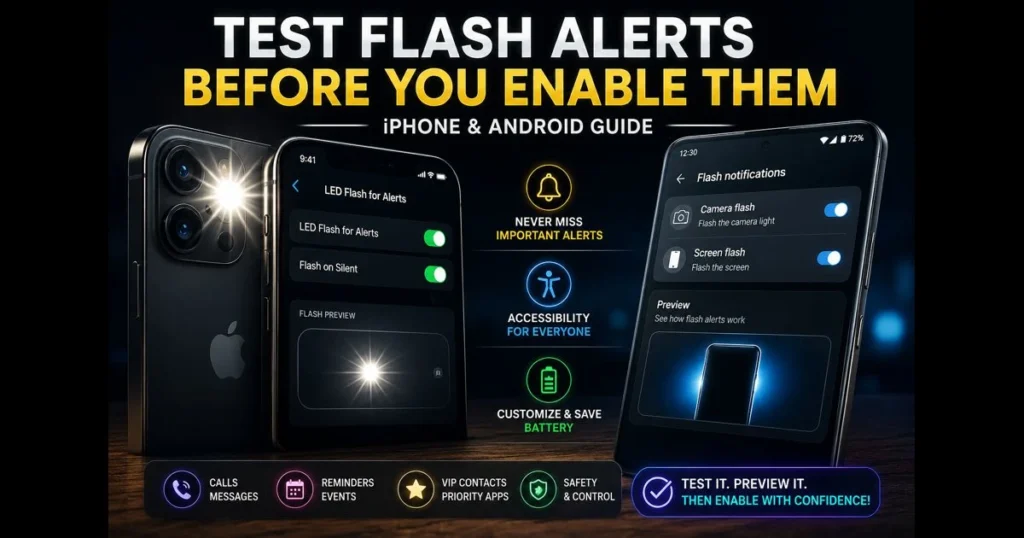
Before adjusting your phone’s settings, it’s wise to test flash notifications so you understand how they look, sound, and behave. These alerts can deliver a subtle nudge or a vibrant burst of light, depending on your device and preferences. This guide explores what flash notifications are, their advantages, and how to enable and test them safely on both iPhone and Android. You’ll also find troubleshooting steps, user experiences, and a glimpse into the future of this alert style. Whether you seek enhanced alerts for critical messages or are exploring accessibility features, this setup will cater to your needs and environment.
We also provide a quick way to try flash notifications without diving into menus: our site’s built-in screen_flash_tester simulates screen-based flashes, allowing you to preview brightness and timing in seconds. Ready to refine your mobile notification settings? Let’s start with the basics. (See: Push technology.)
- Understanding Flash Notifications
- Benefits of Using Flash Notifications
- How to Enable Flash Notifications on iPhone
- How to Enable Flash Notifications on Android
- Testing Flash Notifications Effectively
- Troubleshooting Flash Notification Issues
- User Experiences and Feedback
- Future of Flash Notifications
1. Understanding Flash Notifications
Flash notifications are visual alerts that utilize your phone’s camera flash or display to pulse when a call, message, or app notification arrives. By providing a quick burst of light, they cut through noise, ensuring you never miss an important alert. Related reading: screen flash vs led flash.
These notifications differ from standard alerts in two key ways. They are more visible across a room, enhancing awareness when your phone is face-down or muted. They’re also configurable, letting you choose between the camera light and a bright screen pulse, which impacts both brightness and battery life.
Many phones now feature a flash alert preview option in settings, making it easy to confirm the intensity of the effect before relying on it daily.
2. Benefits of Using Flash Notifications
When timely interruptions are crucial, visual cues are invaluable. A quick camera flash is impossible to miss during a loud commute, while a softer screen pulse offers a discreet option in quiet environments.
Flash notifications serve as significant accessibility features. For those with hearing impairments or who often keep sound off, a visual pulse provides a reliable alternative. It complements vibration, which some users may not notice through a bag or thick case.
There’s also a practical aspect: better notification management. You can typically set specific alerts to trigger light effects, reserving flashes for VIP calls, calendar events, or priority apps. This balance enhances the overall user experience with alerts—urgent messages stand out, while less important ones remain quiet.
3. How to Enable Flash Notifications on iPhone
Step-by-step: Enable LED Flash for Alerts on iPhone
- Open Settings on your iPhone.
- Tap Accessibility.
- Select Audio/Visual (menu names may vary slightly by iOS version).
- Toggle on LED Flash for Alerts.
- If you want flashes when your phone is muted, enable Flash on Silent.
That’s the core setup. In recent iOS versions, an instant sample appears when you switch the toggle, allowing you to assess brightness and angle.
Customize and Flash Alert Preview on iPhone
- Choose between face-up or face-down placement. Face-down on a table often produces a brighter halo.
- If your case has a thick camera lip, test from different angles. Some cases can obstruct the LED, reducing visibility.
- Utilize Focus modes effectively. In Focus settings, allow calls from Favorites or selected apps to ensure critical flashes appear.
- Consider screen-based previews. If you prefer a gentler effect in dark spaces, use our screen_flash_tester to see how a screen pulse performs before relying solely on the LED.
A quick reminder: iOS terminology can change. If you don’t see Audio/Visual, search “flash” in Settings to find the option.
4. How to Enable Flash Notifications on Android
Version note (Android 12/13): Menu names and paths vary by Android version and brand. On many Android 12 and Android 13 devices, the option appears under Settings > Accessibility (sometimes Advanced settings) as Flash notification. On newer stock-like builds (including recent Pixels), you may also find Settings > Notifications > Flash notifications with separate Camera and Screen options.
Recent Android (Pixel and other phones with stock-like Android)
- Open Settings and tap Notifications.
- Look for Flash notifications, typically offering options for Camera flash and Screen flash.
- Enable one or both, then use the preview to gauge brightness and timing.
Samsung (One UI)
- Open Settings > Accessibility > Advanced settings.
- Tap Flash notification.
- Choose Camera flash, Screen flash, or both, then run the in-menu preview.
Other Android Brands (OnePlus, Xiaomi, Motorola, etc.)
Menu paths vary, but these searches will direct you quickly:
- Open Settings and search for “flash,” “screen flash,” or “accessibility.”
- Check Notifications, Display, or Accessibility for a Flash notifications toggle.
If your device lacks a native option, it may be found under special features or alert styles. The exact naming varies across Android versions, so utilize the Settings search bar.
Guidelines for Testing Flash Notifications on Various Devices
- Start with built-in previews. They provide a safe environment to compare screen flash vs. LED flash.
- Test in bright daylight and dim rooms. This helps you determine if you need the stronger camera flash or if a screen pulse suffices.
- Place the phone at typical distances: on your desk, across the room, and inside a bag.
5. Testing Flash Notifications Effectively
Methods to Test Flash Alerts Before Enabling Them
- Begin with a flash alert preview in your phone’s settings.
- Utilize our site’s screen_flash_tester to conduct a controlled screen flash test with adjustable duration and intervals.
- Trigger a real-world event: set a timer, send yourself a message, or ask a friend to call. Keep the screen locked during the test to observe actual behavior.
- Test face-up versus face-down. If you rely on desk visibility, face-down often spreads light more widely from the camera flash.
- Check your case: temporarily remove it to compare brightness; if it improves significantly, consider a case with a wider camera cutout.
Common Issues During Testing and Quick Fixes
- No flash during calls? Ensure the app’s notification category for calls is enabled in mobile settings and not silenced by Focus or Do Not Disturb mode.
- Flash too bright at night? Prefer screen flash and lower overall display brightness, or schedule Focus modes to disable camera flashes while you sleep.
- Battery saver active? Low Power/Battery Saver may limit visual effects; turn it off during testing for an accurate read.
- Still images not visible in sunlight? Increase screen brightness or favor the LED flash for outdoor reliability.
One more safety note: if you’re sensitive to strobe effects or have a history of flashing screen epilepsy, avoid rapid or repeated tests and opt for gentler screen pulses over intense camera flashes.
6. Troubleshooting Flash Notification Issues
Identify Why Notifications Aren’t Flashing
- Check permissions: On Android, ensure the specific app’s notification settings have the appropriate categories (Calls, Messages, Alarms) enabled for flash.
- Review in-app controls for popular messengers: WhatsApp, Facebook Messenger, Telegram, and Signal each offer their own notification settings for messages and calls. If these are muted, set to Silent, or customized inside the app, the system flash may not trigger.
- Adjust Focus/Do Not Disturb settings: Allow exceptions for key contacts and apps so the flash can trigger during active modes.
- Conduct hardware checks: Verify the camera flash works in the Camera app. If not, the hardware may be blocked, overheated, or damaged.
- Bubble/chat-head overlays can change alert behavior: Temporarily disable Messenger chat heads or Android Bubbles while testing to ensure notifications appear normally on the lock screen.
- Manage overlays and power settings: Disable aggressive battery optimization for messaging and calling apps that need to alert in real time.
- Brightness and lock screen: Some screen-flash effects are minimized by very low brightness or specific lock screen styles; test with auto-brightness off.
Resetting Settings to Restore Functionality
If the feature previously worked and suddenly stopped, a reset may clear conflicting rules without erasing personal data.
- iPhone: Go to Settings > General > Transfer or Reset > Reset > Reset All Settings. This restores system preferences (including Accessibility and Focus options) to defaults while keeping your content intact. Re-enable LED Flash for Alerts afterward.
- Android: Open Settings > System (or General management) > Reset options. Choose Reset app preferences to restore disabled apps, notification defaults, and background restrictions. If needed, use Reset all settings (naming varies by brand) to refresh system preferences, then reconfigure Flash notifications.
Before resetting, take screenshots of your current notification management rules for easy rebuilding.
7. User Experiences and Feedback
User experiences often fall into two categories. Some rely on camera flashes for crucial alerts—think on-call shifts or caregiving—because the light is unmistakable even in noisy settings. Others prefer a subtler screen pulse that feels less intrusive in shared environments but is still noticeable from a few feet away.
A vivid pattern emerges when phones rest face-down on a desk: the LED halo reflecting off surfaces is striking and hard to miss. Conversely, users who keep their phones in bags find the camera flash often muted by fabric, while a screen pulse aimed outward can peek through a zipper gap. Such hands-on testing shapes user experiences with alerts more than any spec sheet.
Parents managing naps, students in libraries, and professionals in meetings often start with a test window—perhaps a day of selective flashes for calendar and VIP calls—then refine their settings. After a week, most settle on one or two high-priority categories that still break through, keeping everything else quiet.
8. Future of Flash Notifications
Visual alerts are evolving toward more context and less disruption. Expect finer controls that link light patterns to notification importance—short, warm screen pulses for routine updates, longer, cooler tones for urgent calls. As haptics, ambient display technology, and camera LEDs improve, phones will likely coordinate light with vibration and subtle sound to create layered enhanced alerts that feel informative rather than startling.
Growing attention to comfort and safety is also apparent. Systems may automatically adjust intensity in dark rooms, warn about frequent flashes, and suggest alternatives for users who are sensitive to rapid flashing. Per-app intelligence could recommend gentler screen effects at night and stronger camera flashes outdoors, reducing the need for manual adjustments.
Finally, better previews are on the horizon. Built-in demos will become more realistic, and tools like our screen_flash_tester will remain handy for quick comparisons and adjustments across different environments.
Try It Now
If you’re ready to experiment with flash notifications, start with a quick preview in your phone’s settings, then run a side-by-side comparison using our screen_flash_tester. Test both styles—screen flash vs. LED flash—in bright and dark spaces, and adjust your Focus or Do Not Disturb rules so only priority contacts can trigger light. If you’re sensitive to rapid pulses or concerned about flashing screen epilepsy, opt for slower, softer screen effects and shorter test windows.
Remember, visual cues work best when they’re intentional. Dedicate 10 minutes today to fine-tune your mobile notification settings, confirm what you actually notice in your environment, and establish a setup that respects your attention while keeping you available for what matters.
Frequently Asked Questions
What does “test flash notifications” mean on a phone?
On mobile devices, testing flash notifications means previewing or briefly triggering your camera LED or screen flash to see how alerts will look and behave before you rely on them. Use the built-in Flash notification preview on iPhone or Android, or try a quick screen-based simulation (like our screen_flash_tester) to gauge brightness and timing in your environment.
How can I test flash notifications on iPhone and Android?
iPhone: Go to Settings > Accessibility > Audio/Visual and toggle LED Flash for Alerts; a sample plays immediately. Android: Open Settings > Notifications > Flash notifications (or Settings > Accessibility on some devices) and run the preview. For a real-world check, send yourself a message or call via apps such as WhatsApp, Facebook Messenger, or your default Phone/Messages app while the screen is locked.
Any best practices for testing and using flash notifications?
Keep tests brief and at different distances, switch between camera and screen flash based on room brightness, and use Focus/Do Not Disturb so only priority contacts or VIP chats (e.g., in WhatsApp or Messenger) can trigger light. Watch battery impact, and avoid rapid strobe effects if you’re sensitive to flashing.