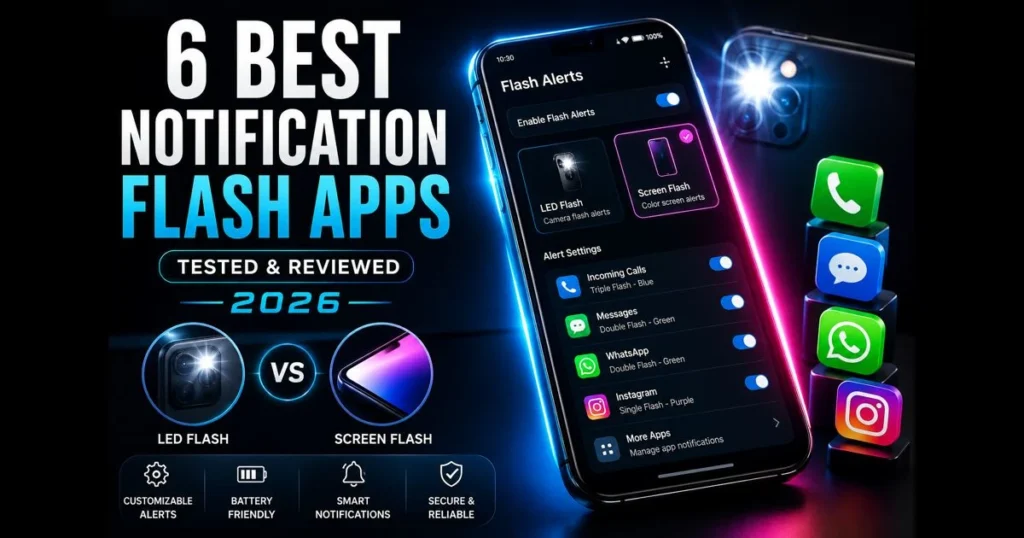
Missed calls and buried alerts remain a challenge, even with smarter phones. Notification flash apps address this issue by lighting up your screen or camera torch when messages, calls, and app notifications arrive. This guide evaluates six standout options in 2023 based on reliability, customization, and practicality. We’ll compare features, demonstrate how to fine-tune flash notifications without draining your battery, and clarify when screen flash vs. LED flash is preferable. Before making a choice, use our site’s built-in screen_flash_tester to quickly assess your device’s capabilities.
- What Are Notification Flash Apps?
- Benefits of Using Notification Flash Apps
- How to Choose the Right Notification Flash App
- Top 6 Notification Flash Apps Tested (2023)
- Custom Flash Alerts: Tailoring Notifications to Your Needs
- Compatibility: Flash Alert Apps for Android and Beyond
- User Experiences: Reviews and Testimonials
- Conclusion: Making the Right Choice for Your Notification Needs
1. What Are Notification Flash Apps?
Notification flash apps are mobile solutions that trigger a bright visual cue—either a camera LED pulse or a colored screen blink—when you receive calls, texts, or app notifications. These apps operate in the background, listening for alerts and responding with customizable flash patterns. (See: Push notification.)
Sound and vibration aren’t always sufficient. In loud environments, across a desk, or when your phone is silent, a quick burst of light offers an effective nudge. Think of them as a focused branch of notification management apps designed solely for visibility.
Many apps support both methods: a camera torch pulse and an on-screen strobe. The choice between screen flash vs. LED flash often depends on hardware capabilities, battery goals, and whether your phone has a strong front camera flash for face-up alerts.
2. Benefits of Using Notification Flash Apps
Flash notifications enhance your phone’s functionality by addressing common issues with low friction. Related reading: screen flash vs led flash.
- Increased visibility in noisy environments: A light pulse cuts through distractions when sound is drowned out.
- Screen-side alerts for face-up phones: On-screen color flashes are easier to spot than a rear LED when your device is face-up.
- Custom rhythms by contact or app: With custom flash alerts, you can assign different blink patterns for important contacts versus less critical notifications.
- Better accessibility: Visual cues assist those who are hard of hearing or prefer light to haptic feedback.
- Quiet hours that still work: Keep sound off while a subtle, dim flash pattern highlights priority messages.
For those already relying on notification apps to prioritize alerts, a flash layer serves as the final touch—a moment when you actually notice the alert.
3. How to Choose the Right Notification Flash App
Not all flash alert tools perform similarly across devices. Here are key considerations to guide your choice.
- Per-app control: Look for granular toggles to light up only for specific calls, texts, or critical apps (e.g., rideshare, two-factor authentication, work chat).
- Contact-based patterns: Assign unique blinks for VIP contacts, allowing you to identify callers without picking up your device.
- Schedules and DND respect: The best apps respect system Do Not Disturb rules while offering their own quiet-hours schedules.
- Brightness, color, and rate: Screen-based flash should allow for color choices and intensity settings to minimize glare during meetings.
- Battery and performance: Camera LED pulses typically consume less battery, but long flashes may generate heat. Screen strobes use more power at high brightness levels.
- Privacy and permissions: Apps may request notification access, camera control, and draw-over-screen permissions. Opt for those with transparent policies.
- Ease of use: A clean layout, quick test buttons, and clear flash notification settings are essential for tuning patterns.
Tip: Before committing, run a screen flash test with our screen_flash_tester. If your display aggressively limits brightness, consider short pulses or LED-based patterns.
4. Top 6 Notification Flash Apps Tested (2023)
We installed and used each app for real-world calls, messaging, and alerts. Names and availability may shift over time, so always verify the publisher and permissions before installing.
LED Blinker Notifications
A veteran among visual notification tools, LED Blinker features an on-screen “virtual LED” dot for AMOLED and LCD screens and can pulse the camera flash on compatible devices. It excels in per-app filtering and color selection.
- Pros: Deep app filtering; small, unobtrusive indicators; functional even without a physical LED.
- Cons: Requires careful battery tuning for bright, persistent indicators; some OEMs limit overlays on the lock screen.
aodNotify
Designed for devices with Always On Display, aodNotify creates a subtle ring or edge glow for new alerts and offers screen flash options for calls. It strikes a balance between full-screen strobes and tiny dots.
- Pros: Polished animations; integrates well with AOD; enhances desk visibility.
- Cons: Works best on specific OEMs; heavy animations may impact burn-in protection if misconfigured.
NotifyBuddy
NotifyBuddy simulates the classic notification LED with a movable dot on the screen. Lightweight and straightforward, it emphasizes simplicity and per-app colors.
- Pros: Minimal setup; clear per-app color mapping; low visual noise.
- Cons: Limited advanced scheduling; on LCD panels, the always-on effect can be overly bright without careful tuning.
Flash Alerts 2
This camera LED-first option focuses on bright, short pulses for calls and important messages. If you depend on a physical flash for visibility from a distance, this is a top contender among flash alert apps.
- Pros: Highly noticeable LED pulses; simple timing controls; effective in loud workplaces.
- Cons: Rear LED is less useful when phones are face-up; extended pulses may warm the device.
Flash Alerts
A widely recognized option in this category, Flash Alerts emphasizes camera LED notifications for calls, SMS, and selected apps, with straightforward controls for blink rate and duration. Multiple editions exist across app stores, so verify the developer name and permissions for your region.
- Pros: Very bright, easy-to-configure LED alerts; per-app toggles for common services; dependable visibility in noisy or bright environments.
- Cons: Fewer advanced scheduling and AOD-style screen effects than dedicated screen-flash tools; rear LED is harder to notice when the phone is face-up.
MacroDroid (Power-User Pick)
While not a dedicated flash app, MacroDroid is a powerful automation tool that enables you to create customized flash notifications. Trigger the camera LED or screen color flashes based on specific conditions—like “weekday + work Wi‑Fi + Slack mention.”
- Pros: Unlimited scenarios; integrates with system states and third-party apps; ideal for advanced customization.
- Cons: Steeper learning curve; requires testing for reliability across different OEM power management.
Note: If your device has a built-in “Flash notifications” toggle, compare its battery impact against these apps. Sometimes, the default option suffices for calls, while an app covers nuanced per-app patterns.
5. Custom Flash Alerts: Tailoring Notifications to Your Needs
Aligning light patterns with your preferences yields the best results. A brief setup session can significantly enhance daily usability.
To get started on many Android phones, navigate to Settings > Accessibility > Flash notifications (names may vary) to select camera LED, screen flash, or both. In third-party apps, access their flash notification settings to configure per-app rules and test patterns.
- Work mode: Implement a soft blue, low-brightness screen blink for calendar invites and project mentions during business hours.
- VIP calls: Assign a triple-pulse LED for starred contacts, ensuring no light for unknown numbers.
- Security first: Give two-factor authentication apps a distinct, fast white flash for immediate visibility.
- Focus-friendly: During reading, use a slow, dim corner glow instead of a full-screen strobe to minimize distraction.
- Nightstand: Use screen-only, warm-tone flashes at low brightness between 7 p.m. and 7 a.m.; avoid the camera LED to prevent harsh bursts.
Testing is crucial. Use our screen_flash_tester to quickly assess and fine-tune brightness, then place your phone at typical distances (pocket, bag, desk) to ensure visibility without discomfort.
6. Compatibility: Flash Alert Apps for Android and Beyond
Android is the natural environment for flash notifications, offering deeper notification access and control across devices. However, OEM differences matter: some skins are restrictive with background limits, while others facilitate smoother experiences.
Recent Android versions often include a native “Flash notifications” option for calls and messages, typically supporting both on-screen color pulses and camera torch. Third-party apps provide added nuance, such as contact-based patterns and scheduling. If your device offers both options, test them side by side—screen flash vs. LED flash—to find what’s most visible at your workspace and least intrusive at night.
What about other platforms? iPhone users have a built-in “LED Flash for Alerts” in Accessibility settings, plus options to flash when on Silent mode. Apple restricts third-party control of camera flash for background alerts, so most customization remains within system settings. On tablets and Chromebooks, screen-based effects can function, but effectiveness depends on whether the device supports persistent overlays and notification access.
If you own a smartwatch, consider pairing light notifications with haptic feedback. A subtle wrist tap alongside a gentle screen pulse may create an ideal combination for mobile notification solutions.
7. User Experiences: Reviews and Testimonials
Patterns emerged as we analyzed app store reviews and conducted tests throughout a workweek.
- Desk visibility wins: Users who keep phones face-up prefer colored screen pulses or AOD rings over rear LEDs, as the light is exactly where their eyes are.
- Loud job sites: Individuals in workshops and event production gravitate toward camera LED bursts for their ability to stand out in bright environments.
- Battery trade-offs: Extended, frequent screen strobes at high brightness can drain battery life. Shorter, less frequent pulses usually suffice.
- OEM quirks: Some devices limit overlays or aggressively terminate background services. Enabling app battery exemptions and checking system “Draw over other apps” permissions resolves many issues.
Travelers and nurses who keep their phones silent often favor a two-pulse, warm-tone screen flash for messages—noticeable in peripheral vision while remaining discreet in dim spaces.
8. Conclusion: Making the Right Choice for Your Notification Needs
Start simple and then personalize. If your phone has a native Flash notifications toggle, try it for calls and one must-not-miss app. For finer control, consider one of the six options above to enhance notification patterns, schedules, and per-contact logic without cluttering your home screen.
The ideal approach is methodical: use our screen_flash_tester to assess your device, decide between LED or screen-based alerts based on your environment, and prioritize a handful of apps. With thoughtful tuning—and the right choice from these top notification apps—you’ll stop missing what matters while keeping distractions in check.
Your move: Test your device, select an app from this list, and spend a few minutes in settings to secure smarter, calmer flash notifications today.
Frequently Asked Questions
What are notification flash apps?
Notification flash apps are applications that use the camera flash on your smartphone to alert you of notifications, such as calls or messages. They provide a visual cue that can be especially helpful in noisy environments or for individuals with hearing impairments.
How do I install a notification flash app?
To install a notification flash app, simply visit your device’s app store, search for ‘notification flash’ apps, and choose one that fits your needs. Follow the installation instructions and grant the necessary permissions for the app to access your camera and notifications.
Are notification flash apps customizable?
Yes, most notification flash apps offer customization options that allow users to adjust the flash frequency, colors, and even the specific notifications that trigger the flash. This helps tailor the app to your personal preferences and needs.