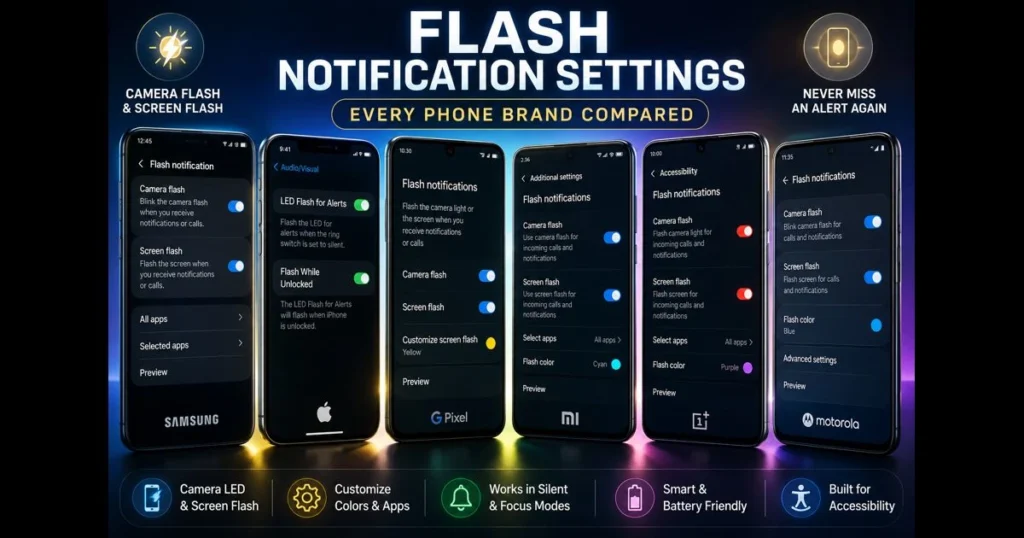
When a chime won’t cut it, flash notification settings step in. Whether you’re in a noisy space, keeping your phone on silent, or prefer visual alerts for accessibility, the right setup reduces missed calls and messages. This guide breaks down notification flash options across major brands, compares how Android and iOS handle them, and shows you how to tailor the effect to be useful—not distracting. We’ll also cover fixes when the light won’t blink, alongside tips for custom flash notifications that respect your focus and battery life. For quick checks, use our site’s built-in Screen Flash Tester to run a fast screen flash test without guesswork.
Expect practical steps, plain-language explanations of each toggle, and smart ways to pair flash alert settings with other mobile accessibility features. Let’s get you set up, brand by brand. (See: Wikipedia on Push Notifications.)
- Understanding Flash Notification Settings
- Flash Alerts by Phone Brand
- Setting Up Flash Notifications on Android Devices
- Setting Up Flash Notifications on iOS Devices
- Customizing Flash Notification Settings
- Troubleshooting Common Issues with Flash Notifications
- Advanced Flash Notification Features
- Future of Flash Notification Technology
1. Understanding Flash Notification Settings
Flash notifications convert incoming alerts—like calls, texts, or app notifications—into a visible blink. Most modern phones use either the camera’s LED or the entire display to create a strobing effect. If your device has both options, you can typically choose one or use them together for extra visibility. Related reading: screen flash vs led flash.
This feature is crucial for many with hearing loss, as strobe cues are among the most effective mobile accessibility tools available. They also help in loud venues, during meetings with sound off, or overnight when vibrations might disturb others. A key distinction—screen flash vs. LED flash—affects brightness, power use, and visibility at different angles. Screen flashes are diffuse and best seen face-up; LED pops are sharper and project outward from the camera area.
2. Flash Alerts by Phone Brand
Flash alerts vary significantly by brand. Apple emphasizes a consistent toggle that works across all alert-generating apps. Samsung integrates deep controls into Accessibility, allowing you to choose colors and select which apps trigger the effect. Google Pixel centralizes both camera and screen flashes under Notifications, while other Android brands may hide the features under Accessibility or special display settings.
In daily use, you’ll notice some differences: iPhones provide a reliable LED blink for calls and notifications, while Android devices often offer granular control and color options, particularly on Samsung and Pixel models. If your device lacks a physical LED, it will rely on a bright, full-screen overlay to get the job done.
In essence, Android offers more customization options, while iOS focuses on a straightforward global switch that functions seamlessly.
3. Setting Up Flash Notifications on Android Devices
Step-by-step guide for Samsung devices
Samsung’s approach is user-friendly and clearly labeled. The exact wording may vary by One UI version, but the path remains consistent:
- Open Settings and tap Accessibility.
- Select Advanced settings, then tap Flash notifications.
- Toggle Camera flash notifications if you want the rear LED to blink for calls and notifications.
- Toggle Screen flash notifications to use a bright on-screen overlay for alerts.
- Tap the screen flash option to adjust color, intensity, and—on many models—select which apps can trigger it.
- Use the built-in preview. If you don’t see one, place a quick call to yourself to test, or run a screen flash test with the Screen Flash Tester to confirm functionality.
Tip: Samsung often allows you to limit flash behavior to incoming calls, messages, or specific apps, making it useful if you only want visual alerts for certain updates.
Instructions for Google Pixel and other Android brands
On Google Pixel devices, the setting usually resides here:
- Open Settings and tap Notifications.
- Select Flash notifications.
- Enable Camera flash and/or Screen flash.
- Review app-level control if available, or rely on existing notification permissions to govern what triggers a flash.
- Use the on-page preview to confirm visibility in your typical lighting.
Other Android brands vary:
- OnePlus: Look for Settings > Accessibility or in Special features.
- Xiaomi/Redmi/POCO: Check Settings > Notifications & Control center or Additional settings > Accessibility.
- Motorola and others: Search for “flash” or “notification flash” in your Settings app. Some models may require a third-party app if there’s no built-in toggle.
If you can’t find the option, use the Settings search bar and type “flash notifications.” Brand pages and support articles sometimes rename features after updates, so searching can be faster.
4. Setting Up Flash Notifications on iOS Devices
How to enable flash notifications on iPhones
Apple places flash alerts under Accessibility for a consistent systemwide experience. While wording may vary slightly by iOS version, the steps are reliable:
- Open Settings and tap Accessibility.
- Go to Audio/Visual.
- Turn on LED Flash for Alerts.
- Review any placement options beneath it, such as flashing when the phone is unlocked.
The LED flash will now pulse for incoming calls and notifications. If your iPhone is face down or across the room, an LED blink is easier to catch than a subtle vibration.
Customization options available for iOS users
iOS doesn’t provide per-app flash toggles, but you still have control through Focus modes. If a Focus allows notifications from only a few apps or contacts, the flash will only activate for those. This creates custom flash notifications without toggling the LED setting itself.
Another option is setting per-app notification styles. If you disable notifications for an app, there’s nothing to flash. Keep critical apps set to deliver alerts while muting nonessential ones during the day.
5. Customizing Flash Notification Settings
Beyond simple toggles, many phones allow you to modify the character of the flash. On Android devices, screen-based alerts let you choose a color, adjust brightness, or alter how long the overlay lingers. A cooler color like blue can feel calmer in dim rooms, while a warm yellow can cut through daylight effectively. Camera LED blinks are typically short, but some phones lengthen the pulse when you select “long” or “repeat” options in the flash settings.
Choosing which apps can use flash notifications can be the difference between a helpful cue and constant strobe. Samsung and Pixel models usually include an app list in the flash menu. If your brand doesn’t, limit app notifications generally or organize apps into Priority categories so only those trigger the flash. On iPhone, Focus boundaries help achieve similar goals.
If you’re testing multiple tweaks, see the effects in context. Use the Screen Flash Tester on this site to preview changes quickly and avoid guesswork with real calls.
6. Troubleshooting Common Issues with Flash Notifications
No blink? Start with the basics:
- Check Silent/Focus modes. If your device is in Do Not Disturb or a strict Focus, alerts (and the flash) may be paused.
- Confirm per-app notifications are enabled. If an app can’t show alerts, there’s nothing to flash.
- Look for camera conflicts. If the camera is open, recording, or another app is using the LED, the flash may be blocked.
- Mind battery and temperature. Power saver modes may limit visual effects, and phones often disable the LED if the device is too warm.
- Check screen brightness and overlays. Some Android skins let you reduce animation or color effects; those settings can mute a screen flash overlay.
- Be aware of hardware. Recent phones often skip a dedicated notification LED. If you expected an LED pulse, enable the screen-based flash instead.
To diagnose quickly: run a screen flash test to verify the display overlay works, then place a call to yourself with the camera app fully closed. If the screen overlay flashes but the camera LED doesn’t, that indicates an LED access conflict.
How to reset flash notification settings without wiping your phone:
- Android: Toggle camera/screen flash off, reboot, then toggle back on. If problems persist, go to Settings > System/General management > Reset and select Reset all settings (wording may vary). This resets system preferences but retains personal data. You can also Reset app preferences from the Apps menu to restore default permissions.
- iPhone: Toggle LED Flash for Alerts off and on, then restart. If needed, go to Settings > Transfer or Reset iPhone > Reset > Reset All Settings. Back up first; while content stays, you’ll re-enter Wi‑Fi and similar preferences.
Still stuck? Try searching “flash notifications” in your phone’s Settings to find any brand-renamed options after updates. Use our tester to test flash notifications after each change to see what fixed it.
7. Advanced Flash Notification Features
Want more control than your stock menu offers? On Android, reputable third-party apps can create patterns, repeat intervals, or on-screen “edge lighting” effects that mimic a hardware LED. Look for apps that clearly explain why they request notification access and offer granular per-app rules. If your device has an AMOLED screen, simulated “LED dot” styles can save battery compared to full-screen strobe.
iOS is stricter about background notification handling, so system-level LED flashes remain the most reliable. However, you can create useful automations with Shortcuts and Focus modes—like enabling LED alerts during a Work Focus or using Back Tap to quickly toggle the flashlight before a meeting.
Integration ideas worth trying:
- Combine visual alerts with haptics for redundancy. A brief vibration plus a subtle screen flash is noticeable without being harsh.
- Use bedtime or driving modes to temporarily suppress nonessential flashes while preserving alerts from urgent contacts.
- Pair with live captions or sound recognition features if you’re building a broader accessibility toolkit, ensuring you don’t rely on a single cue type.
When comparing screen flash vs. LED flash for advanced setups, consider the context: LEDs cut through bright rooms; screen overlays are better when the phone faces up. Battery impact and heat are usually lower with short LED pulses, but color and per-app control often favor the screen-based approach on Android.
8. Future of Flash Notification Technology
As hardware evolves, fewer phones include a dedicated notification LED, and software-driven screen effects are becoming smarter. Expect richer “edge” and cutout animations that are visible from varied angles without flooding the room with light. Subtlety is key: instead of harsh strobe effects, anticipate soft pulses that adjust to ambient brightness and your activity.
On the platform side, look for deeper system hooks that allow you to set patterns based on priority level—urgent alerts could pulse brighter or longer, while routine notifications might use a softer flash. More thoughtful connections to modes and routines will make visual alerts feel less binary and more situational, ensuring you get the necessary nudge without unnecessary noise.
Accessibility will remain central. Visual cues that adapt to color sensitivity, brightness tolerance, or motion preferences can enhance flash alerts’ inclusivity. It’s not just about whether the light blinks, but how it communicates.
Until then, you have effective tools to shape your experience. The combination of platform toggles, app-level rules, and a quick tester to preview changes gives you control right now.
Ready to dial in flash notification settings that work for your life? Follow the steps for your brand, set sensible per-app rules, and use our Screen Flash Tester to preview and test flash notifications in real time. A few minutes of setup today can lead to fewer missed moments tomorrow.
Frequently Asked Questions
What are flash notification settings?
Flash notification settings allow users to enable or disable visual alerts on their devices for incoming notifications. This feature can enhance accessibility and ensure important messages are not missed.
How do I enable flash notifications on my device?
To enable flash notifications, go to your device’s settings, select ‘Accessibility’, and then find the ‘Flash Notifications’ option. Toggle it on and customize any additional settings as needed.
Can I customize the flash notification settings for different apps?
Yes, many devices allow you to customize flash notifications for individual apps. Check the app settings or the notification settings in your device’s main settings menu to adjust preferences.