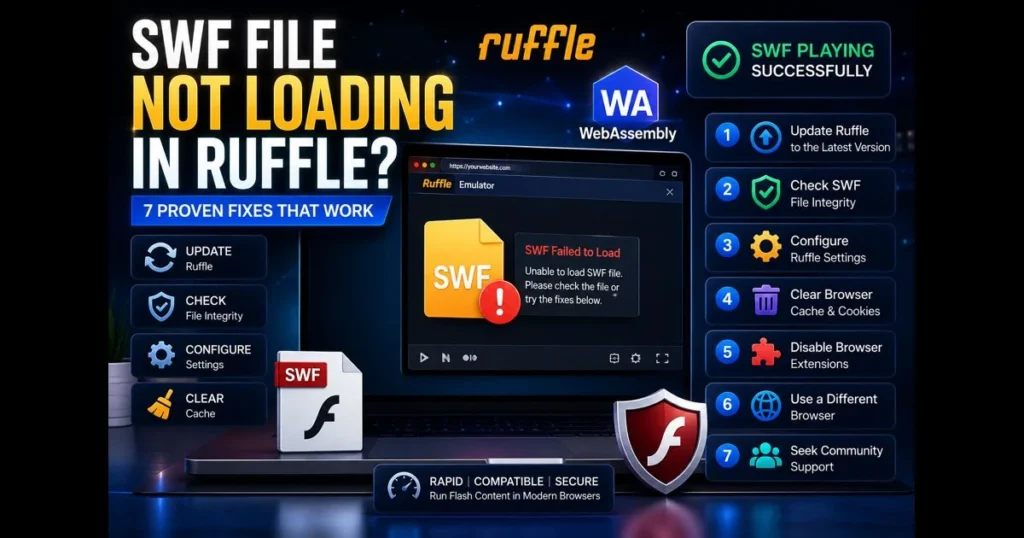
Encountering “SWF not loading Ruffle” when trying to run a classic animation or game can be frustrating. Fortunately, most playback issues stem from identifiable causes with straightforward fixes. This guide outlines seven practical steps to resolve SWF loading problems, from simple browser cleanups to smarter configuration choices. You’ll learn how to verify your SWF, identify compatibility limits, and utilize our built-in
Drop your .SWF file here
or click to browse — the game starts instantly
Your file never leaves your device. Everything runs locally via the Ruffle emulator.
Whether Ruffle is embedded on a website, installed as a browser extension, or used as a desktop app, the core principles remain the same. If your SWF file won’t open, begin with file integrity. If Ruffle loads but nothing renders, check site permissions, caching, and extensions. For those curious about WebAssembly and its relevance, we provide a clear explanation below, as understanding the engine can guide you to the right fix. (See: Ruffle (emulator) – Wikipedia.)
- Understanding Ruffle and SWF Files
- Common Reasons for SWF Files Not Loading
- Fix 1: Update Ruffle to the Latest Version
- Fix 2: Check SWF File Integrity
- Fix 3: Configure Ruffle Settings
- Fix 4: Clear Browser Cache and Cookies
- Fix 5: Disable Browser Extensions
- Fix 6: Use a Different Browser
- Fix 7: Seek Community Support
1. Understanding Ruffle and SWF Files
Overview of Ruffle and its purpose in running SWF files.
Ruffle is a Flash Player emulator that allows SWF content to run in browsers using WebAssembly and modern web APIs, eliminating the need for Adobe’s outdated plug-in. If you’re looking to open SWF files without Flash Player, this is a safe and future-proof option. It functions as a JavaScript polyfill for websites, a browser extension for end users, and a desktop player for local files.
In essence, Ruffle translates the expectations of old Flash content into capabilities that modern browsers support. If you’re curious about WebAssembly, think of it as a compact code format that browsers can execute quickly—ideal for emulating legacy runtimes like Flash. Related reading: open swf without flash player. Alternative open-source emulators such as Gnash and Lightspark can also serve as comparison points during troubleshooting, though their compatibility and maintenance status vary.
Brief explanation of SWF files and their common uses.
SWF files package vector graphics, bitmaps, sounds, and ActionScript into a single container. They powered a range of content, from banner animations and e-learning modules to beloved mini-games. This variety explains why some files load seamlessly in Ruffle while others struggle—features within the SWF dictate compatibility. Related reading: what is webassembly.
2. Common Reasons for SWF Files Not Loading
Incompatibility issues between SWF files and Ruffle.
Ruffle has solid support for ActionScript 1 and 2, but complex ActionScript 3 (AS3) features, along with specific filters or video codecs, may still be lacking. If your content relies on advanced AS3 APIs or niche codecs, Ruffle’s limitations could be the reason for playback failures. This is where examining logs and testing across different builds proves useful.
Potential corruption of the SWF file.
SWF files can become corrupted due to partial downloads, server misconfiguration, or issues with old storage media. Even a single truncated byte can hinder parsing. Symptoms include a blank stage, a fleeting “loading” spinner that disappears, or console errors about invalid tags or malformed headers.
3. Fix 1: Update Ruffle to the Latest Version
Importance of keeping Ruffle updated.
Ruffle is continually evolving. Each update brings compatibility enhancements and crash fixes that can resolve SWF playback issues. If you tried a file some time ago and it didn’t work, a newer build may solve the problem.
Step-by-step guide to updating Ruffle.
- For browser extension users:
- Open your browser’s extensions manager, check Ruffle’s version, and click the Update button if available. If not, remove and reinstall from the official store.
- On Chromium-based browsers, open the extension’s Details and enable “Allow access to file URLs” for local SWF files. This often resolves many “nothing happens” issues.
- Ensure Site access is set to “On all sites” or “On click” for your testing page.
- For website owners/embedders:
- Replace hosted ruffle.js/wasm files with the latest build from the project site or a CDN.
- Bust caches: update the script query string (e.g., ?v=new) and purge your CDN to prevent visitors from accessing outdated code.
- Verify MIME types for .wasm (application/wasm) and confirm the files are publicly readable.
- For desktop app users:
- Download the latest desktop build and reinstall. Then reopen your SWF file to test.
Need a quick sanity check? Upload the same file to our built-in
Drop your .SWF file here
or click to browse — the game starts instantly
Your file never leaves your device. Everything runs locally via the Ruffle emulator.
4. Fix 2: Check SWF File Integrity
How to verify if the SWF file is corrupted.
Start with the basics: ensure the file size aligns with your expectations and re-download it from a trusted source if possible. If the SWF is hosted online, try accessing it directly in a new tab. A 404, 403, or a suspiciously small download indicates the issue lies outside of Ruffle.
Use your browser’s Developer Tools to inspect the Network and Console panels while loading the page. Errors mentioning “invalid SWF,” “could not parse tag,” or CORS issues point to file or hosting problems, not emulator errors.
Tools available for checking SWF file integrity.
- JPEXS Free Flash Decompiler (FFDec): Open the SWF to see if its structure is readable; a failure suggests corruption.
- SWFTools (swfdump): Run a quick dump to verify header and tags if you’re comfortable with command-line utilities.
- : Upload and run the file in a controlled environment to distinguish file issues from browser quirks.
Drop your .SWF file here
or click to browse — the game starts instantly
Your file never leaves your device. Everything runs locally via the Ruffle emulator.
- Adobe Flash Player (legacy, EOL): For historical comparison only, the standalone projector can verify whether the SWF runs in the original runtime when tested offline in a sandboxed VM. Do not install deprecated browser plug-ins. See Adobe Flash Player.
If none of these tools can open the file, treat it as damaged. If it opens elsewhere but not in Ruffle, you’re likely facing SWF compatibility limits or a local environment issue.
5. Fix 3: Configure Ruffle Settings
Explanation of Ruffle settings that may affect SWF loading.
Two categories are crucial: permissions and embedding. The extension requires permission to operate on the site hosting the SWF, and it needs access to local files if you’re launching content from your desktop. For self-hosted embeds, script initialization and cross-origin access can make or break loading.
How to adjust settings for optimal performance.
- Extension permissions:
- Enable “Run on all sites” or explicitly add the site. In Chromium browsers, toggle “Allow access to file URLs” for local testing.
- Check your browser’s Site settings for the page: allow sound/autoplay if your project requires immediate audio or video.
- Embedding best practices:
- Initialize Ruffle after the container element exists in the DOM; defer the script if necessary.
- Host the SWF and Ruffle assets under the same origin when possible. If loading cross-origin, set appropriate CORS headers on the SWF and .wasm files.
- Serve .wasm with application/wasm and avoid content transformations by proxies or CDNs.
- Local playback tips:
- For straightforward testing, use our or the Ruffle desktop player instead of file:// in a browser.
Drop your .SWF file here
or click to browse — the game starts instantly
Your file never leaves your device. Everything runs locally via the Ruffle emulator.
- For straightforward testing, use our
These troubleshooting tips resolve many “Ruffle appears but nothing plays” complaints, especially in corporate networks with stringent content filters.
6. Fix 4: Clear Browser Cache and Cookies
How cached data can interfere with Ruffle.
Old cached copies of ruffle.js or the .wasm binary can conflict with a new SWF or a recent Ruffle update. This mismatch often leads to silent failures. Clearing site data compels the browser to fetch the current assets.
Step-by-step process to clear cache and cookies.
- Google Chrome / Microsoft Edge:
- Open Settings > Privacy and security > Clear browsing data.
- Select Cached images and files (and Cookies for the specific site, if comfortable).
- Set Time range to “All time” for stubborn cases. Reload the page.
- Mozilla Firefox:
- Settings > Privacy & Security > Cookies and Site Data > Clear Data.
- Alternatively, use the padlock icon > Clear cookies and site data for this site.
- Safari (macOS):
- Safari > Settings > Advanced > Show Develop menu. Then Develop > Empty Caches.
- For site-specific cookies: Safari > Settings > Privacy > Manage Website Data.
After clearing, hard-reload the page. If it starts working, stale assets were the issue, not Ruffle itself.
7. Fix 5: Disable Browser Extensions
Potential conflicts caused by browser extensions.
Ad blockers, privacy filters, script blockers, legacy Flash plug-ins, and content filters can interfere with requests to your SWF or Ruffle’s .wasm file. The visible symptom often mimics a broken emulator, though the conflict lies upstream.
Guide to disabling extensions temporarily to test Ruffle.
- Open your Extensions/Add-ons manager.
- Disable anything that interacts with scripts, ads, media, or security (uBlock, NoScript, legacy Flash, antivirus web shields).
- Reload the page. If Ruffle functions, re-enable extensions one at a time to pinpoint the blocker.
- Once identified, add the site to the extension’s allowlist or adjust its settings for that page.
This quick test can streamline troubleshooting. If disabling extensions resolves the issue, you’ve identified the problematic extension.
8. Fix 6: Use a Different Browser
Compatibility of Ruffle with different web browsers.
Ruffle operates wherever modern JavaScript and WebAssembly are supported, but real-world performance can vary. Chrome and Firefox generally provide the best experience for heavy SWFs. Edge tends to follow Chrome’s performance. Safari may enforce stricter autoplay and cross-origin policies, potentially resulting in a blank stage.
Recommendations for browsers that work well with Ruffle.
- For the least surprises, test in Firefox and a Chromium browser (Chrome or Edge). If one succeeds while the other fails, the difference often points to site permissions, autoplay policies, or a specific extension.
- On macOS, if Safari struggles, try Firefox for a quick comparison.
If you need to play SWF files quickly, our
Drop your .SWF file here
or click to browse — the game starts instantly
Your file never leaves your device. Everything runs locally via the Ruffle emulator.
9. Fix 7: Seek Community Support
How to find and utilize Ruffle community forums.
If you’ve exhausted basic troubleshooting and Ruffle still falters, turn to the project’s GitHub Issues/Discussions or community chat. Include your SWF (if possible), your Ruffle build info, browser version, console logs, and a description of what should happen versus what you observe. Clear, reproducible reports attract attention.
Benefits of engaging with other users facing similar issues.
Chances are someone else has encountered the same issue. You may receive a workaround—such as toggling a permission or altering your embed—or discover a genuine gap in AS3 support. Either way, you’ll resolve your immediate challenge while contributing to the emulator’s overall improvement.
Practical Scenarios and Quick Checks
Short on time? Execute this 60-second triage:
- Test the SWF in . If it runs there, your local site or browser is likely at fault.
Drop your .SWF file here
or click to browse — the game starts instantly
Your file never leaves your device. Everything runs locally via the Ruffle emulator.
- Open the browser console. CORS (Cross-Origin Resource Sharing) errors usually mean your SWF, JS, or .wasm is being requested from a different origin without proper Access-Control-Allow-Origin headers, or is blocked by a server/CDN policy. Failed .wasm fetches often point to a bad URL, 404/403, wrong MIME type (application/wasm), or a cached/corrupted file. Note that content can also be the cause—an embed pointing to the wrong SWF path, a SWF preloading assets from another domain without CORS, or references to missing external files will trigger similar errors.
- Enable the extension’s “Allow access to file URLs” and reload if testing from your desktop.
- Temporarily disable ad/script blockers and retry.
If your content heavily utilizes AS3 and you see “unsupported” errors, you’re likely encountering current limitations rather than misconfiguration. That’s an opportune moment to file a report with a minimal sample.
When to Rethink the Approach
Some projects may not be feasible in Ruffle yet. Complex 3D graphics, advanced filters, or niche video pipelines may never achieve perfect parity. For these edge cases:
- Rebuild critical interactions in HTML5/Canvas if longevity matters most.
- Extract assets with JPEXS and re-author essential scenes using modern tools.
- Document known limitations near the embed to inform users that a gap exists rather than presenting it as a broken feature.
It’s perfectly acceptable to maintain a small archive workflow where you use the desktop Ruffle app offline for reference, while the public site serves a modern equivalent.
Why This Works: A Brief Tech Primer
Ruffle compiles a Flash runtime into WebAssembly and maps Flash’s drawing, audio, and input models onto web APIs. This is why permissions, CORS, and caching are crucial: you’re loading a runtime alongside your content. If the runtime is outdated, blocked, or mismatched with the SWF, everything appears broken—even if the file itself is fine.
Understanding this dynamic makes debugging less daunting. You’re not merely fixing “a file that won’t load”; you’re ensuring a small emulator stack initializes correctly and has access to the necessary resources.
Your Next Steps
Don’t let a blank canvas or a spinning icon convince you that your content is lost. Update Ruffle, verify the file, check permissions, clear caches, and test in a clean browser. Use our
Drop your .SWF file here
or click to browse — the game starts instantly
Your file never leaves your device. Everything runs locally via the Ruffle emulator.
Ready to get started? Upload your file to
Drop your .SWF file here
or click to browse — the game starts instantly
Your file never leaves your device. Everything runs locally via the Ruffle emulator.
Frequently Asked Questions
Why is my SWF file not loading in Ruffle?
There could be several reasons for this issue. Common causes include unsupported ActionScript features, corrupted SWF files, or compatibility issues with the Ruffle version being used.
How can I troubleshoot SWF loading issues in Ruffle?
You can start troubleshooting by checking the console for error messages, ensuring your SWF file is not corrupted, and verifying that you’re using the latest version of Ruffle. Additionally, consider testing with simpler SWF files to isolate the problem.
Are there specific SWF files that Ruffle cannot load?
Yes, Ruffle may struggle with SWF files that use complex ActionScript or rely on external resources that are not accessible. It’s recommended to check the Ruffle documentation for a list of supported features and limitations.