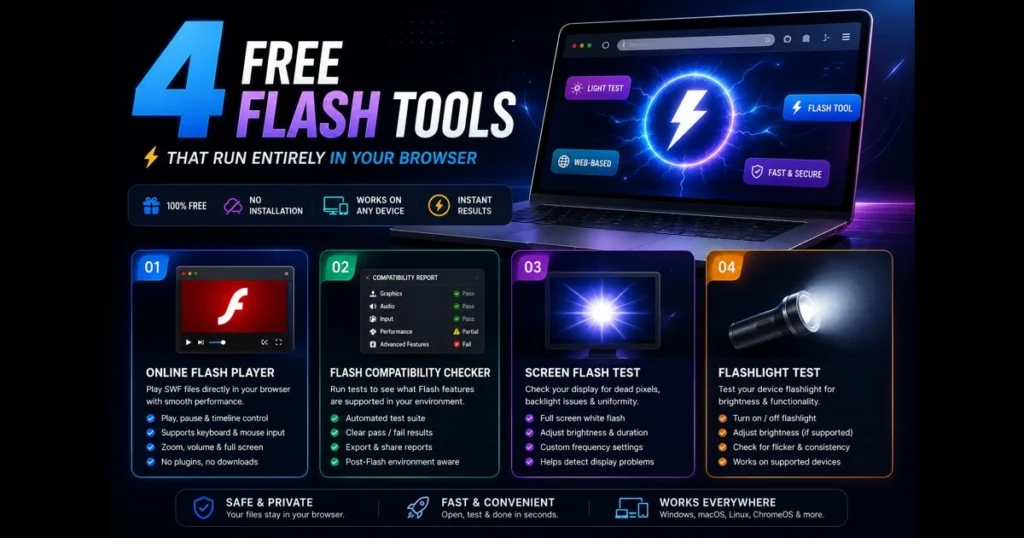
Looking for free flash tools that work seamlessly in a tab, with no installations required? You’re in the right spot. These online flash tools — from SWF emulators to diagnostic checkers and quick device tests — save time and keep your workflow smooth. Whether you need to play SWF files for an old project, run a flash compatibility check on a laptop, perform a screen flash test on a monitor, or conduct a quick flashlight test on your phone, the right browser-based tools make it simple. This guide highlights four no-cost, web-based flash tools, detailing what they excel at and how to get results fast, all without downloads. Related reading: play swf online.
- Overview of Flash Tools
- Criteria for Choosing Flash Tools
- Tool 1: Online Flash Player
- Tool 2: Flash Compatibility Checker
- Tool 3: Screen Flash Test
- Tool 4: Flashlight Test
- Comparative Analysis of the Tools
- Conclusion
Overview of Flash Tools
Today’s “flash tools” cater to two main needs: running legacy Flash content and testing brief, high-intensity light patterns on screens or LEDs. Some tools emulate SWF files for previewing animations, training modules, or archived web content. Others trigger controlled bursts of light for diagnostics — useful for displays, camera sensors, or phone LEDs. (See: Adobe Flash.)
Why opt for online flash tools over downloadable apps? The primary benefits are convenience and portability. Web-based tools load instantly in any modern browser, eliminating setup hassles on locked-down work machines or borrowed devices. They’re platform-agnostic, allowing Mac, Windows, Linux, and ChromeOS users to access the same features with a simple URL. Related reading: flashlight test online.
These browser-based tools excel in lightweight, “use-and-go” tasks. You open a page, run a test or emulation, capture what you need, and close the tab. For teams handling audits, QA checks, or quick training refreshers, this simplicity is a significant advantage.
Notable free tools in this space:
- Ruffle: An actively developed Flash Player emulator that runs many SWF files directly in modern browsers via WebAssembly. Strong support for ActionScript 1/2, with ActionScript 3 compatibility improving over time.
- Flashpoint: A preservation project and launcher providing access to a massive archive of Flash-era content. Primarily desktop-based, though select experiences can be accessed through web-safe players; ideal when pure in-browser emulation falls short.
- Lightspark: An open-source Flash player focused on ActionScript 3 support. Often used as a desktop application or plugin; useful for testing compatibility when browser-only options don’t fully cover a feature set.
Criteria for Choosing Flash Tools
Start with user-friendliness. The best web-based flash tools offer a clear control panel, sensible defaults, and no surprises: a drag-and-drop target for files, a straightforward play/stop toggle, and labeled settings with live feedback. If a novice can land on the page and achieve a result in under a minute, you’re on the right track.
Next, consider each tool’s actual purpose and available controls. A useful SWF player should make file loading simple, while a compatibility checker should clearly explain browser requirements. Screen-flash tools should offer easy start and stop controls, and mobile flashlight tests should clearly state that torch access depends on device, browser, hardware, and permission support.
Security and data privacy matter, even for quick tasks. Favor browser-based tools that process files locally in your tab (often via WebAssembly or service workers) so your content remains secure. If a tool requires uploads, ensure there’s a clear data policy, temporary storage windows, and an opt-out option. In locked environments or with proprietary training modules, local-only cloud tools — those that perform everything client-side — are the safest bet.
Tool 1: Online Flash Player
Key features and functionalities
The Online Flash Player is a browser-based SWF emulator powered by Ruffle. It lets you load and play many supported SWF games and animations without installing the retired Adobe Flash Player. Keyboard and mouse interactions may work where supported by the original file, although compatibility varies, particularly with complex ActionScript 3 content.
How to Use the Online Flash Player
Open the tool and drag your SWF file into the upload area, or select it manually from your device. The Ruffle emulator will then attempt to run the file in your browser. If the file does not play correctly, it may use unsupported Flash features, depend on missing external assets, or be damaged.
Pros and cons
- Pros: No Adobe Flash Player installation, simple file loading, browser-based playback, and local processing where supported.
- Cons: Not every SWF file is fully compatible, and complex files may run slowly or fail on some devices.
Tool 2: Flash Compatibility Checker
Key features and functionalities
The Flash Compatibility Checker examines whether your browser supports the basic technologies required for modern Flash emulation. It checks browser detection, WebAssembly, WebGL, and secure HTTPS access. Because Adobe Flash Player was discontinued on December 31, 2020, modern SWF playback now depends on emulators such as Ruffle. Passing these checks confirms basic browser readiness, but it does not guarantee that every SWF file will work.
How to use Flash Compatibility Checker
Open the page and allow the automated checks to run. Review the results for browser detection, WebAssembly, WebGL, and HTTPS support. If a check fails, update your browser, confirm that hardware acceleration is enabled, and make sure you are using a secure connection. Even when every check passes, individual SWF files may still contain unsupported features.
Pros and cons
- Pros: Fast browser-readiness checks, no installation, clear results, and support for desktop and mobile browsers.
- Cons: It does not analyse individual SWF files, guarantee compatibility, or repair browser and device problems.
Tool 3: Screen Flash Test
Key features and functionalities
The Screen Flash Test lets you preview flashing colours and blink speeds directly in your browser. It is designed to demonstrate screen-based visual alerts before you enable similar notification features on your phone. It does not diagnose dead pixels, measure monitor refresh rates, or replace professional display-testing equipment.
How to Use the Screen Flash Test
Open the tool, select an available colour and blink speed, and start the flashing preview. Use the tool’s stop control, click the screen, or press Escape to end the effect. Avoid using the test if you or anyone nearby has photosensitive epilepsy or is sensitive to flashing lights.
Pros and cons
- Pros: Quick browser-based preview, adjustable visual settings, simple controls, and no downloads.
- Cons: It does not enable real phone notifications, control the camera LED, or diagnose display hardware.
Tool 4: Flashlight Test
Important: The Flashlight Test depends on device hardware, browser support, operating-system restrictions, and camera permission. It is mainly intended for mobile devices and may not work on desktop computers or browsers that block direct torch access.
Key features and functionalities
The Flashlight Test checks whether your browser can request camera permission and access the rear torch on supported mobile devices. On compatible phones, it may switch the flashlight on or report whether torch control is available. Support varies by device, browser, operating system, selected camera, and hardware.
How to use Flashlight Test
Open the page on your phone and press the test button. Allow camera access when your browser requests permission. On supported devices, the tool will attempt to access the rear camera and activate the torch. If camera access works but the flashlight does not turn on, your browser or operating system may not support direct torch control.
Pros and cons
- Pros: Mobile-friendly, no app installation, camera-permission testing, and torch access on supported devices.
- Cons: Direct torch control is unavailable on many browsers, iPhones, tablets, and desktop computers.
Comparative Analysis of the Tools
If you need to run legacy content, the Online Flash Player is the go-to option for opening supported SWF games and animations directly in your browser. For device readiness, the Flash Compatibility Checker helps determine whether your browser supports the basic technologies required for modern Flash emulation. When visual alerts are your focus, the Screen Flash Test lets you preview flashing colors and blink speeds on your display, while the Flashlight Test focuses on phone camera permission and torch access on supported mobile devices.
In summary, choose the Online Flash Player for SWF previews, the Flash Compatibility Checker for validating browser readiness, the Screen Flash Test for previewing screen-based flash effects, and the Flashlight Test for mobile torch checks. Together, these four free online utilities create a practical toolkit for legacy playback, browser testing, visual alert previews, and mobile flashlight checks — all through browser-based flash tools.
- Best for legacy playback: Online Flash Player
- Best for environment readiness: Flash Compatibility Checker
- Best for screen-flash previews: Screen Flash Test
- Best for mobile torch checks: Flashlight Test (mobile-only; permissions and device support required)
Conclusion
Free, web-based flash utilities are useful when speed, portability, and simplicity are priorities. With an emulator for supported SWF files, a Flash compatibility checker for browser readiness, a screen flash test for previewing visual alerts, and a flashlight test for supported mobile devices, these tools cover several common needs directly within a browser tab.
However, because Adobe Flash Player has been discontinued and major browsers have removed native support, results can vary widely across devices and browsers. Many tools now rely on emulation or limited Web APIs, so certain features may be unavailable or behave inconsistently. Treat these solutions as best-effort and environment-dependent, and always verify outcomes on the target platform before committing to a workflow.
Frequently Asked Questions
What are free flash tools?
Free flash tools are browser-based utilities that help users play supported SWF files, check browser readiness, preview screen-flash effects, or test camera and torch access on supported mobile devices.
Are free flash tools safe to use?
Browser-based flash tools can reduce installation risks because they run directly in the browser. Keep your browser updated, use trusted websites, and only open SWF files obtained from reliable sources.
Do I need Adobe Flash Player to use these tools?
No. Adobe Flash Player has been retired and is no longer supported by modern browsers. The Online Flash Player uses Ruffle to emulate many supported SWF files without requiring the original Flash plugin.