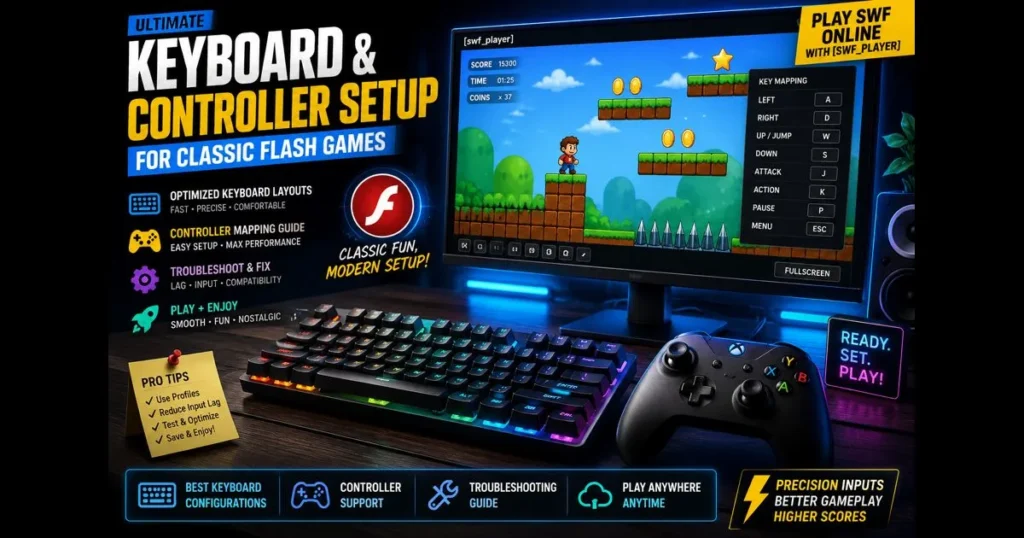
Flash game controls are straightforward—arrow keys, spacebar, and a few letters—but mastering them transforms quick distractions into satisfying, skill-based experiences. Flash games have long captivated players with their instant accessibility, quick learning curve, and rewarding precision. If you’ve ever fumbled a jump or missed a timing window, you understand that controls are the backbone of the experience. This guide covers essential flash game controls, custom keyboard settings, and how to use gamepads to play. You’ll also discover how to utilize our site’s built-in tool,
Drop your .SWF file here
or click to browse — the game starts instantly
Your file never leaves your device. Everything runs locally via the Ruffle emulator.
- Understanding Flash Game Controls
- Setting Up Your Keyboard for Flash Gaming
- Play Flash Games with a Controller
- Configuring Controller Settings for Flash Games
- Popular Flash Games and Their Controls
- Troubleshooting Common Control Issues
- Future of Flash Games and Control Compatibility
1. Understanding Flash Game Controls
Overview of common keyboard controls in flash games
Most classic Flash titles utilize a concise set of inputs. Movement is typically assigned to WASD or the Arrow keys. Jumping and interaction usually fall on the Spacebar, while attacks and abilities are often mapped to Z/X/C, J/K/L, or Shift/Ctrl. Menu navigation typically relies on arrows, Enter, and Escape. Developers favored keys that didn’t conflict with system shortcuts and could be reliably polled across platforms. (See: Flash game – Wikipedia.)
Mouse-intensive genres—like defense, clicker, and point-and-click adventures—still depend on the keyboard for actions like pausing or toggling speed. This blend adds to the charm: quick typing, rapid taps, and immediate feedback.
Importance of mastering controls for gameplay efficiency
As levels increase in intensity, precise inputs become crucial. Good habits—keeping your fingers where the game expects them and minimizing hand movement—can shave seconds off speed runs and stabilize tricky boss fights. Comfort with default controls is essential before making adjustments.
2. Setting Up Your Keyboard for Flash Gaming
Recommended keyboard configurations for various genres
Different genres benefit from tailored layouts. Here’s a baseline to consider:
- Platformers and action: WASD for movement, Space for jump, J/K for attack/dodge, Shift for sprint, E for interact.
- Top-down shooters: WASD to move, mouse to aim, Left/Right Click for fire/alt-fire, R to reload, Q/E for cycling weapons.
- Tower defense/strategy: Mouse primary, with 1–5 for towers/units, R for rotate, Esc for cancel, P for pause.
- Racing: Arrows for steering and throttle, Shift/Ctrl for nitro/handbrake, R for reset, C for camera toggle.
Laptop users: if your arrow keys are cramped, consider using HJKL for movement or enabling function-layer arrows, then binding actions nearby to minimize stretching.
Customization options for optimal gaming performance
Adjust the layout to suit your hands and the game’s rhythm. Here are some useful tweaks:
- Rebind clustered actions (jump, interact, attack) to nearby keys so your right hand stays on the home row.
- Assign modifier keys (Shift/Alt) to actions that benefit from holding, rather than tapping.
- Use software like macOS Keyboard Shortcuts, Windows PowerToys, or third-party mappers to create custom keyboard settings per genre.
- In our , create per-game profiles so your adjustments load automatically with each SWF.
Drop your .SWF file here
or click to browse — the game starts instantly
Your file never leaves your device. Everything runs locally via the Ruffle emulator.
If a game doesn’t allow rebinding, a lightweight keyboard remapper at the OS level can help translate your preferred keys to what the SWF expects.
3. Play Flash Games with a Controller
Benefits of using a controller for flash games
Controllers provide familiar ergonomics, analog precision for racers and platformers, and reduced finger strain during extended sessions. For many, a gamepad is easier to handle than a flat keyboard, especially when combined with vibration cues.
Players often seek ways to “play flash games with a controller” when tighter controls are needed for platformers or shooters. Thoughtful mapping combines the comfort of a pad with the responsiveness of keyboard inputs.
Guide to connecting controllers to your computer
Modern controllers typically connect via USB or Bluetooth. On both Windows and macOS, they appear as standard gamepads. Browser-based Flash emulation, such as Ruffle or our
Drop your .SWF file here
or click to browse — the game starts instantly
Your file never leaves your device. Everything runs locally via the Ruffle emulator.
- Connect your controller (USB for instant pairing; Bluetooth for cordless play).
- Check that your OS recognizes it (Game Controllers on Windows; Bluetooth & Game Controllers on macOS).
- Choose a mapper: Steam Input (through Steam’s overlay), AntiMicroX, JoyToKey, or reWASD.
- Create a profile that translates buttons and sticks into the keys your game uses.
- Launch the SWF in or a compatible emulator to test your setup.
Drop your .SWF file here
or click to browse — the game starts instantly
Your file never leaves your device. Everything runs locally via the Ruffle emulator.
If you prefer cloud or mobile, there are ways to play swf online through web-based emulation, with some front-ends allowing SWF play on Android using on-screen controls or Bluetooth pads.
4. Configuring Controller Settings for Flash Games
Step-by-step setup for popular controllers
While brands differ, the setup logic remains the same: map what the SWF requires to the buttons your thumbs can reach quickly.
- Xbox-style pads: Map Left Stick or D-Pad to WASD/Arrows; A to Space (jump); X/Y to Z/X (actions); B to Esc (back); LB/RB to Q/E (cycle); LT/RT to Shift/Ctrl (sprint/block).
- PlayStation-style pads: Cross to Space; Square/Triangle to Z/X; L1/R1 for Q/E; Options to Enter; Touchpad click (if supported) to Tab or Map toggle.
- Switch Pro: A to Space; B to Crouch; X/Y to actions; D-Pad to movement for precise platforming.
In Steam Input, add an “On-Screen Keyboard” option for games requiring text entry (like naming saves), so you never need to drop the controller mid-game.
Adjusting button mappings for personalized control
Start with movement and jump assigned to your most comfortable inputs—typically the left stick/D-Pad and bottom face button. Frequent actions should be on adjacent buttons, while shoulder buttons can be reserved for toggles or cycling. For games using charge attacks, bind them to a trigger to avoid finger fatigue. Adjust dead zones on analog sticks for precision in platformers; reduce them for racers requiring subtle steering.
Save profiles in your mapper and label them by title. This way, switching between popular flash games is seamless, and you won’t have to reconfigure each time you load a new SWF.
5. Popular Flash Games and Their Controls
Highlighting top flash games and their specific controls
While exact bindings can vary, many popular titles share similar control schemes:
- Precision platformers: Movement on WASD/Arrows, Space to jump, Shift for run, X/C for abilities.
- Defense and strategy: Mouse aim/build, number keys for quick slots, R to rotate structures, Esc to cancel.
- Arena shooters: WASD to move, mouse to aim, Left Click to fire, Q/E to cycle weapons, R to reload.
- Super Mario Flash: Classic platforming with Arrows (or WASD) for movement; Space or Z for jump; X/C or Shift for run/fire in variants—mirrors the “precision platformers” layout above.
- The Impossible Game: One-button auto-runner—press Space (or Up/Left Click) to jump; timing is everything—an ultra-simplified take on the platformer scheme.
- Line Rider: Mouse-dominant sandbox—draw/erase with the mouse; Space to play/pause, R to reset, and Arrow keys to scrub speed—matches the “mouse-intensive” pattern that supplements drawing with transport controls.
If a title uses hard-coded keys, a mapper allows you to translate your preferred layout into the game’s fixed scheme.
Tips for mastering controls in challenging games
Practice is key: set a goal like “clear the tutorial without missed inputs.” Refine timing—understand the difference between tapping and holding for jumps, or make quick weapon swaps between waves. Recording short clips can help identify hesitations in your gameplay. Small optimizations lead to smoother runs.
If latency is an issue, consider using a wired controller or keyboard, close background tabs, and run the SWF locally in
Drop your .SWF file here
or click to browse — the game starts instantly
Your file never leaves your device. Everything runs locally via the Ruffle emulator.
6. Troubleshooting Common Control Issues
Identifying and fixing keyboard control problems
Stuck or unresponsive keys often trace back to browser focus or key ghosting. Click the game canvas to ensure it’s focused, then test in a blank profile. If certain combinations fail, you’re hitting your keyboard’s rollover limit. Rebinding to a different trio can solve the issue. Disable OS-level shortcuts (like sticky keys prompts) that might steal focus. For older SWFs, try a different browser engine or our
Drop your .SWF file here
or click to browse — the game starts instantly
Your file never leaves your device. Everything runs locally via the Ruffle emulator.
For persistent issues, create a clean user profile on your OS to isolate conflicts with background utilities.
Resolving controller connectivity issues
If your controller isn’t detected, re-pair it and update drivers or firmware. On Windows, verify it appears as an XInput device; on macOS, ensure Bluetooth permissions are granted to the mapper. If inputs work in the OS but not in the game, the mapper profile may not be active—switch targeting to “desktop” or to the
Drop your .SWF file here
or click to browse — the game starts instantly
Your file never leaves your device. Everything runs locally via the Ruffle emulator.
- Lag or drift: Reduce Bluetooth interference, replace batteries, recalibrate sticks, and adjust dead zones slightly.
- Double inputs: Disable duplicate layers (e.g., Steam Input plus JoyToKey) or set one to “pass-through.”
- Browser conflicts: Some tabs capture the gamepad input. Close overlapping pages and relaunch your SWF.
7. Future of Flash Games and Control Compatibility
Emerging trends in gaming controls and technology
Emulation and preservation efforts keep classic games accessible, while modern input layers are evolving. Browser-based runtimes increasingly recognize gamepads, and mappers are becoming more sophisticated—context layers, radial menus, and auto-switching profiles are becoming standard. Expect cloud saves, haptic feedback, and shared community profiles to streamline control setups across devices.
How modern gaming platforms are adapting to classic flash games
Platforms hosting classic content emphasize smooth loading and safe archiving. Our site’s
Drop your .SWF file here
or click to browse — the game starts instantly
Your file never leaves your device. Everything runs locally via the Ruffle emulator.
Always source content from legitimate archives. When in doubt, download flash games legally and keep backups organized by title and version, ensuring your controller configuration profiles remain portable.
Classic Flash games deliver instant fun, and thoughtful input setups are the key. Create a keyboard layout that feels natural, map your controller intentionally, and maintain a troubleshooting checklist. Then press Start and dive in. Ready to put this into action? Fire up a favorite SWF in
Drop your .SWF file here
or click to browse — the game starts instantly
Your file never leaves your device. Everything runs locally via the Ruffle emulator.
Frequently Asked Questions
What are common keyboard controls for flash games?
Common keyboard controls for flash games typically include the arrow keys for movement, the spacebar for jumping or using items, and the ‘Z’, ‘X’, or ‘C’ keys for actions like attacking or interacting with objects.
Can I customize keyboard controls in flash games?
Many flash games offer an option to customize keyboard controls within the game’s settings menu, allowing players to tailor the controls to their preferences for a better gaming experience.
Are keyboard controls different for all flash games?
Yes, keyboard controls can vary widely between different flash games, as each game may have its own unique mechanics and control schemes designed to enhance gameplay.