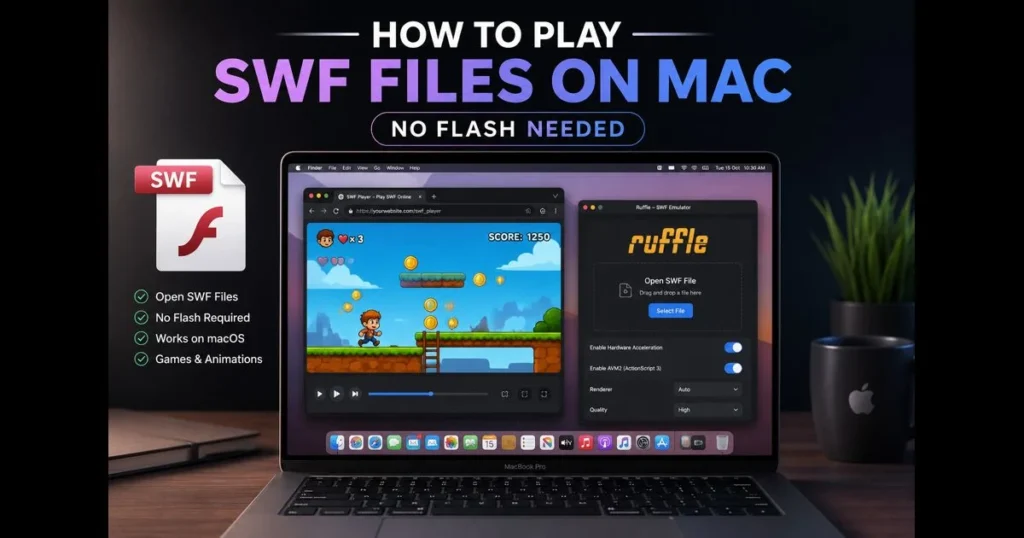
Playing SWF files on a Mac in 2023 feels like opening a time capsule. With Adobe Flash Player retired and web browsers disabling plugins, those .swf files—classic games, interactive portfolios, school projects—still hold value. The good news is, you can open SWF files without Flash. This guide covers reliable methods to open SWF mac using modern tools, from dedicated apps to browser-based emulators and conversion workflows. You’ll also find troubleshooting tips for quirks like ActionScript compatibility and keyboard input, plus safety notes to avoid unnecessary security risks.
If you need a quick solution, our site’s built-in SWF Player (swf_player) runs in your browser and smoothly handles many older animations—an easy Adobe Flash alternative mac to try first. Prefer desktop? A SWF player mac like Ruffle’s standalone app is fast to set up, and for stubborn files, an offline projector can be a lifesaver. Let’s bring those classics back to life.
- Understanding SWF Files
- Why Flash Player is No Longer Viable
- SWF Players for Mac
- Using Standalone SWF Players
- Using Web Browsers to Open SWF Files
- Converting SWF Files to Other Formats
- Troubleshooting Common Issues
1. Understanding SWF Files
Definition and Purpose of SWF Files
SWF (Small Web Format) files bundle vector graphics, images, audio, timelines, and scripts into a single container designed for playback in the Flash runtime. They act like self-contained interactive movies. These files can be pure animation, fully interactive applications, or a mix of both. Unlike standard videos, SWFs respond to mouse and keyboard input and may load external assets at runtime.
Common Uses of SWF Files in Games and Animations
Before HTML5 emerged, many browser games, banner ads, microsites, music visualizers, and animated shorts were created as SWFs. If you’re looking to play SWF files mac today, chances are you’ve stumbled upon a retro web game, a client’s legacy interactive piece, or an artist’s reel rendered as a SWF. Some files are straightforward “press play” animations; others require clicks, keystrokes, or an internet connection to pull images or scores. (See: Apple Support.)
2. Why Flash Player is No Longer Viable
The End of Support for Adobe Flash Player
Adobe ended support for Flash Player years ago, and major browsers have disabled plugin support. You can’t just install the plugin and expect it to work. Even archived installers fail in Safari or Chrome, while Apple’s security model blocks outdated browser plugins.
Security Concerns Associated with Flash
The browser plugin became a frequent attack vector, prompting a shift towards emulators that re-implement playback without the old plugin or standalone offline players. Both options aim to preserve content while eliminating the risks that led to the original shutdown.
3. SWF Players for Mac
Overview of Popular SWF Player Options Available for Mac
You have three main categories of options:
- Ruffle (Desktop app and browser extension): An open-source Flash emulator focused on ActionScript 1–2 content, with increasing ActionScript 3 support. Great for animations and many classic games.
- Adobe Flash Player Projector (offline “standalone”): The legacy standalone player that runs SWFs locally without a browser. While no longer supported, it can still play many files offline. Use with caution.
- Flashpoint: A preservation project bundling emulators, players, and curated game collections. Mac support exists, though it can be more hands-on than on Windows.
For quick browser-based playback—no installs—our site’s mac SWF player (swf_player) lets you drag and drop a file for instant testing. It’s the simplest way to open swf without flash player and a handy first step before using heavier tools.
Comparison of Features and Usability
- Ease of setup: Ruffle desktop and our SWF file viewer mac in-browser tool are quickest. The projector requires sourcing a legacy app and adjusting macOS security prompts.
- Interactivity: Emulators handle many keyboard/mouse inputs; complex ActionScript 3 titles may still be hit-or-miss.
- Offline vs. online: The projector is fully offline. Emulators can run offline, though some SWFs expect network access for external assets.
- Safety: Emulators avoid the legacy plugin. The projector should only be used offline with trusted files.
4. Using Standalone SWF Players
Detailed Guide on How to Install and Use Standalone SWF Players
Start with an emulator app:
- Download the macOS build of Ruffle from its official project page.
- Drag the app to Applications. On first launch, you may see a Gatekeeper prompt; right-click the app, choose Open, then confirm.
- Open your .swf directly with Ruffle or drag it onto the app window.
- Test keyboard and mouse input. If the file behaves oddly, try toggling hardware acceleration and window scaling within the app or test another build.
If Ruffle doesn’t work, consider the Adobe Flash Player Projector only as a last resort—it’s outdated and unsupported and may pose security risks. Prefer safer options first; if you proceed, run it offline and with trusted files:
- Obtain the projector from Adobe’s archived downloads or a trusted preservation source. Verify checksums when possible.
- Keep your Mac offline when running unknown SWFs. The projector is unsupported; reduce risk by staying disconnected and using known-safe files.
- Right-click the app, choose Open, and then File > Open to select your SWF. Some titles will spring to life exactly as you remember.
Another option is Flashpoint, which can launch many archived titles with minimal setup, though support varies. If your goal is a specific classic game from a known archive, Flashpoint may be the fastest route to a working copy.
Recommended SWF Players for Mac Users
- Ruffle (Desktop): First choice for animations and many older games. Free, open-source, actively developed.
- Adobe Projector (offline): Use when an emulator doesn’t suffice, provided you stay offline. Powerful but legacy.
- Flashpoint (Mac builds): Great for curated content or known games from preservation lists.
- Our site’s SWF Player: Zero-install, quick triage. If it works here, you’re likely set elsewhere too.
- Elmedia Player: Popular Mac media player with SWF support and convenient playback controls; works well for local animations and simple interactions.
- SWF & FLV Player: A dedicated standalone player for SWF/FLV on macOS; straightforward and lightweight. Stick to offline playback with trusted files.
5. Using Web Browsers to Open SWF Files
How to Configure Modern Web Browsers to Play SWF Files
Since plugins are no longer available, the browser approach relies on emulation:
- Install the Ruffle browser extension in Firefox or a Chromium-based browser. Drag a SWF into a new tab or open an HTML page that embeds it. For local files, grant file access to the extension as needed.
- Use our site’s built-in SWF Player (swf_player): open the page, drop your file, and test playback. This is often the easiest way to play swf online on a Mac without extra software.
- If your SWF loads external assets (XML, images, or other SWFs), place them in the same folder and maintain original relative paths. Running a local web server instead of accessing via file:// may improve loading behavior.
Limitations and Considerations When Using Browsers
Some ActionScript 3 content isn’t fully supported by emulation. You might encounter a blank stage, broken buttons, or audio glitches. If you run into “swf not loading ruffle” issues, switch to the desktop Ruffle app, try the projector offline, or look for a preserved version via Flashpoint that’s known to work. Full-screen mode can also help with keyboard focus.
6. Converting SWF Files to Other Formats
Step-by-Step Guide on Converting SWF Files to MP4 or Other Formats
Conversion isn’t as straightforward as it sounds; SWFs are interactive timelines, not just videos. There’s no universal “SWF to MP4” solution that preserves every button and script. Here are two practical methods:
Method A: Screen-capture the playback
- Open the SWF in Ruffle desktop or the projector. Set the window to your desired size and frame rate.
- Open QuickTime Player and select New Screen Recording. Capture the app window while you play and interact as needed.
- Stop recording and save as MP4 by exporting through QuickTime or transcoding later in HandBrake. This “what you see is what you get” method works for almost anything visible.
Method B: Extract Embedded Video (When Present)
- Some SWFs are merely wrappers around a video stream. Tools like FFmpeg can sometimes read the stream and export directly.
- If FFmpeg can’t parse it, play the SWF and use a high-bitrate screen capture to preserve quality, then trim and transcode.
If your goal is to archive a non-interactive animation, capture at high resolution and a steady frame rate, then convert SWF mac recordings to a modern codec. For fully interactive games, consider capturing a “playthrough” video instead of expecting a fully clickable export.
Recommended Conversion Tools for Mac Users
- QuickTime Player: Built-in, simple for high-quality screen capture.
- OBS Studio: Offers more control over bitrate, resolution, and audio routing; ideal for longer sessions.
- HandBrake: Useful for compressing/editing your capture into a shareable MP4. Note: HandBrake doesn’t import SWF directly.
Many “SWF to MP4” utilities make grand promises. Be cautious—their success depends on the SWF’s structure, and some require outdated components. When in doubt, play in a reliable viewer and record the result.
7. Troubleshooting Common Issues
Common Problems When Trying to Open SWF Files on Mac
- Black or white screen on launch, or “file unsupported.”
- Input problems: arrow keys or spacebar don’t register; right-click menus missing.
- No sound, choppy audio, or desynced music.
- External assets (images/XML) not loading; broken preloader stuck at 0%.
- “SWF not loading Ruffle” when unsupported ActionScript 3 APIs are required.
- Gatekeeper warnings when opening downloaded apps or projectors.
Solutions and Tips for a Smoother Experience
- Try another player: test our in-browser swf_player, then Ruffle desktop, then the offline projector. Different engines cover various features.
- Keep files together: place the SWF and any referenced assets in one folder, preserving original paths. If it was a web piece, run it from a simple local server instead of double-clicking the SWF.
- Check ActionScript version: older animations (AS1/AS2) often run fine in Ruffle; complex AS3 titles may need the projector or Flashpoint.
- Use full-screen mode: improves keyboard focus and can reduce browser interference. In desktop apps, disable “capture system shortcuts” so keys reach the SWF.
- Stay offline for security with the projector and untrusted files. If a SWF connects for assets, reconnect only after verifying the source.
- If macOS blocks launches, right-click the app and choose Open to bypass the first-run warning. Keep software in Applications and avoid random unsigned builds.
- For stubborn audio/video sync issues, lower the window size or frame rate in the player and capture with OBS at a fixed FPS.
If playback still eludes you, check if your specific title is supported by Flashpoint or reported as incompatible with current emulators. Often, the quickest route is finding a known-good package of the same content.
That’s the landscape. Between an emulator like Ruffle, an offline projector used carefully, and quick tests in our site’s swf_player, most users can get their files running again on macOS—no plugin required. For a permanent copy, record a clean run and store it as MP4, while keeping the original SWF for posterity.
Ready to revive your archives? Start by dropping a file into our in-browser mac SWF player to check if it works. If not, install Ruffle desktop, keep your Mac offline for projector tests, and follow the conversion steps to create a shareable video. Your old projects and favorite games don’t have to remain stranded on a dead plugin—bring them back to life today.
Frequently Asked Questions
How can I play SWF files on a Mac?
You can play SWF files on a Mac using Adobe Flash Player or third-party applications like Elmedia Player or VLC Media Player. Additionally, some web browsers may support SWF playback with specific settings.
Are there any alternatives to Adobe Flash Player for playing SWF files on Mac?
Yes, alternatives include Ruffle, a Flash Player emulator, and standalone applications such as SWF & FLV Player or SWF Opener, which allow you to open and play SWF files without relying on Adobe Flash.
Is it safe to play SWF files on my Mac?
While playing SWF files can be safe, it’s important to ensure that the source of the files is trustworthy. SWF files can sometimes contain malware, so using reputable players and keeping your software updated is recommended.