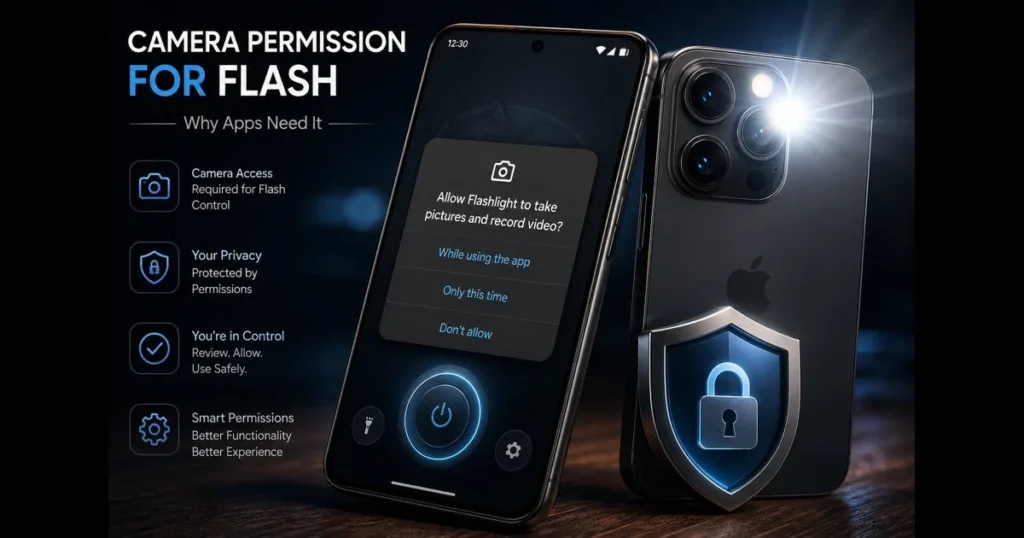
When an app requests camera permission for flash, it can feel intrusive if all you want is a brighter scene or a quick barcode scan. However, this request usually stems from how phones are engineered rather than an attempt to invade your privacy. Understanding why apps ask for camera permission helps you balance user privacy with mobile app functionality. This guide breaks down the technical details behind flash control, how different platforms manage app permissions, potential risks, and how both users and developers can make informed choices. We’ll also direct you to our site’s built-in Torch Tester, a simple tool to verify your LED functionality and understand what permissions your browser or phone requires before granting access.
- Understanding Camera Permissions
- The Role of Flash in Mobile Applications
- Why Camera Permission is Required for Flash Usage
- Flashlight Permission vs. Camera Permission
- Privacy Concerns Regarding Camera Permissions
- Best Practices for Developers
- Alternatives to Camera-Based Flash Usage
- Future Trends in App Permissions and Flash Usage
1. Understanding Camera Permissions
What “camera permission” means in apps
In mobile operating systems, a permission acts as a gate. The camera permission allows an app to access the device’s imaging hardware and related controls provided by the platform. This typically includes opening the camera, starting a preview, capturing photos or video, and toggling the rear LED as a torch. (See: Camera – Wikipedia.)
One permission often unlocks multiple functionalities because hardware and software are closely integrated. The LED that acts as a “flashlight” is located on the same camera module as the main lens. Consequently, platforms usually expose that LED through camera-related APIs. That’s why a simple torch app may still request camera access. Related reading: allow camera in browser.
How permissions are granted and managed across platforms
On Android and iOS, camera access is controlled by a runtime prompt the first time an app attempts to use it. You can approve, deny, or change your mind later in the Settings. Recent versions also allow you to restrict use to “only while using the app,” and many will automatically reset unused permissions after prolonged inactivity. Related reading: flashlight not working android.
In web environments, there isn’t typically a separate “flashlight” control available by default. Some devices and browsers support torch functionality through the media capture pipeline, meaning the page must request your camera to access the LED. If testing in a browser, you often need to explicitly allow camera access before any torch control becomes available.
2. The Role of Flash in Mobile Applications
How your phone’s flash actually works
Smartphones do not have a standalone flashlight chip on the board. The bright LED near the camera is part of the camera module and is governed by drivers linked to the camera stack. It can fire briefly as a “flash” for still photos or remain on steadily as a “torch.”
Due to this design, the operating system typically exposes torch features alongside camera features. Many first-party apps—such as Camera, QR code scanners, and document scanners—can toggle the torch without switching apps because they already operate within the camera pipeline.
Common app use cases for flash usage
- Photography and video: Provides fill light for portraits, backlighting in low light, or steady key light for video calls.
- Scanning and recognition: QR codes, barcodes, receipts, and IDs often require additional light for reliable detection.
- Utility torch: Serves as a quick light for dark hallways, server racks, or emergency kits.
- AR and measurement tools: Constant illumination can enhance depth or marker tracking in dim environments.
These scenarios illustrate “mobile app functionality” where the LED and lens work together, which is why a single permission typically covers both capabilities.
3. Why Camera Permission is Required for Flash Usage
The technical reasons the flash lives behind the camera gate
If you’ve ever wondered why camera permission is necessary just to activate a light, the answer lies in integration. The LED and camera share drivers and power rails; the API that controls one usually resides within the camera service. Toggling the torch typically requires opening a handle to a camera device, even if no frames are captured.
Resource coordination is another factor. Only one app should control the camera module at any given time to prevent conflicts and battery drains. By requiring camera access for torch control, the operating system can manage exclusivity, prioritize foreground use, and minimize race conditions between apps.
Integrated experiences depend on shared access
From a user-experience perspective, the best scanning and photo apps allow you to adjust exposure, focus, and torch simultaneously with a single tap. Granting camera permission enables that seamless control: set focus, adjust ISO if necessary, and toggle the torch for a clean capture. Separating torch functionality into an independent, always-on channel could lead to issues—such as a torch remaining on while the camera pipeline cannot adjust—so many platforms keep them linked.
4. Flashlight Permission vs. Camera Permission
What’s the difference?
In many ecosystems, there isn’t a distinct “flashlight permission” separate from camera access. Torch control is treated as a function of the camera device. You’ll typically see a single prompt labeled “Camera,” with the torch included as part of that access.
Some devices may expose a flashlight toggle in system settings or quick actions that apps can invoke indirectly, but third-party apps often still rely on camera access for direct LED control. You might see flashlight permission mentioned in a permission manager, but it ultimately connects back to the camera service.
When might an app need both?
There are edge cases. An app that focuses on photography will request camera access; a distinct system-level policy (like in managed or enterprise devices) might allow or restrict torch use specifically. In those cases, you’ll see what appears to be two controls: one for the camera and one for torch functionality. For regular consumer use, however, granting camera access typically suffices for torch control.
5. Privacy Concerns Regarding Camera Permissions
Understanding potential camera access risks
Since camera permission can enable image capture, it carries significant implications. The main camera access risks include unauthorized recording, background use without clear indication, and the potential for combining camera data with other identifiers. Mainstream platforms do display status indicators when the camera is active and limit background access, yet you should still regard camera prompts as sensitive.
Another subtle risk is permission creep: apps that begin as simple utilities may later incorporate more invasive features. Regularly review updates, skim release notes, and be cautious of apps whose functions do not logically require camera access.
How to review and manage permissions effectively
- Grant “only while using the app” when given the option. This links the torch and camera to screen-on activity you control.
- Periodically audit Settings > Privacy > Camera (wording may differ) and revoke access for apps you no longer use.
- Prefer first-party or well-reviewed tools for persistent torch utilities; avoid unknown sideloads.
- Utilize your browser’s site controls to revoke camera access after tests or demos—especially if you had to allow camera access for a web-based torch.
- Troubleshooting tip: If your flashlight isn’t working after denying permissions, re-open the app, grant access on-demand, and test again.
If you’re uncertain whether a page or app is trying to use the camera, our Torch Tester can help you verify behavior safely without installing additional software.
6. Best Practices for Developers
Request camera access responsibly
Only ask for what you need, when you need it. A just-in-time prompt—triggered by a user tapping a “Turn on flash” button—feels more honest and is more effective. Avoid bundling microphone or location requests with camera access unless they are essential.
Provide clear explanations for your permission requests: “We use the camera to toggle the torch for low-light scanning. No photos are saved.” Where supported, prefer APIs that let you toggle the torch without starting a full capture session; however, on most devices the LED shares hardware and drivers with the camera, so camera permission is still required. Assume permission will be needed in production, design for that path, and handle denied access gracefully (e.g., offer a high-brightness screen light fallback).
Users often trust well-known options that clearly communicate torch use and permissions, such as the system-level flashlight toggles in Android’s Quick Settings and the iOS Control Center, as well as popular apps like Tiny Flashlight + LED and Super-Bright LED Flashlight. Referencing familiar patterns from these implementations can help set user expectations in your own UI copy and timing of prompts.
Educate users and honor choices
- Offer a visible on/off torch control and accurately reflect its state if the OS or another app takes over the camera.
- Respect OS privacy indicators and avoid any hidden previews; if a preview is necessary, make it visible.
- Document your data flow: what you access, store, or transmit. Keep it minimal—data minimization builds trust.
- Test degraded paths: denied permission, revoked mid-session, devices without LED, or browsers without torch support. This is basic app development practice, but it often gets overlooked.
7. Alternatives to Camera-Based Flash Usage
Ways to light without camera access
If your goal is simple illumination, you don’t always need to involve the camera. Consider:
- Screen flashlight: Display a full-bright white screen or strobe. No camera permission required; works on any device.
- System quick toggle: Encourage users to utilize the OS flashlight tile for consistent light while your app operates without extra permissions.
- Companion hardware: In professional workflows, a small USB or Bluetooth light avoids any software permission issues.
These alternatives bypass the camera access requirement, though they may not suffice for scanning or photography where coordination between the sensor and light is necessary.
Browser-based testing and “online flashlight” tools
On the open web, torch control—when available—still routes through the camera capture path. This means a page must request camera access, the user must permit camera in the browser, and the device must support torch controls via the browser’s media APIs. If any link in that chain is missing, you won’t see a hardware LED toggle.
Our site features a built-in Torch Tester for quick diagnostics. It guides you through permission prompts, reports whether your device and browser support torch controls, and allows you to safely test an on/off cycle. People often search for “flashlight test online” to check their LEDs; the Torch Tester provides that, along with clear messaging about the permissions used and their purpose.
If you’ve encountered issues with flashlight functionality in certain apps, running the Torch Tester can help determine whether the problem lies with hardware, permissions, or app conflicts.
8. Future Trends in App Permissions and Flash Usage
Where permission models are headed
Permission systems are evolving toward more granular, temporary access. Expect shorter-lived grants (session-based permissions), clearer indicators, and APIs that expose specific hardware toggles without opening full capture pathways where possible. Developers will face stronger guidelines around broad permission requests.
Browsers are also standardizing capability prompts. If torch control remains tied to camera capture, you’ll likely see more descriptive prompts and settings allowing users to enable light without persistent camera access for that site.
Shifting expectations and regulatory pressure
Users increasingly demand transparency: a clear connection between tapping a button and the permission that appears. Regulators and app stores are advocating for data minimization and honest disclosures. For torch usage, this means requesting access only when a light is necessary, keeping any capture off unless the user can see it, and clarifying that the LED is linked to the camera stack.
As these expectations solidify, apps that treat the torch as a byproduct of camera access—without explanation—will encounter resistance. The positive outcome is trust: fewer prompts, tighter scopes, and smoother user experiences.
Wrap-up and next steps: You now understand why many apps request camera permission to control the flash: the LED resides in the camera’s domain, and integrated control enhances functionality. Maintain your privacy by granting access only when it aligns with your intent, auditing permissions regularly, and choosing tools that are transparent. To verify how your device handles torch control, use our Torch Tester, run a quick check, and adjust your app settings confidently. If you’re developing an app, only request the permissions you truly need—and clearly communicate your reasons at the moment of request.
Frequently Asked Questions
Why does my app need camera permission to use the flash?
The app requires camera permission to access the device’s camera hardware, which includes the flash functionality. Without this permission, the app cannot control the flash for taking photos or videos.
How can I grant camera permission for flash usage?
You can grant camera permission by going to your device’s settings, finding the app in question, and enabling camera access. This will allow the app to use the flash when needed.
What should I do if I denied camera permission and want to use the flash?
If you previously denied camera permission, you can change this in your device’s settings. Locate the app, tap on permissions, and enable the camera access to use the flash again.