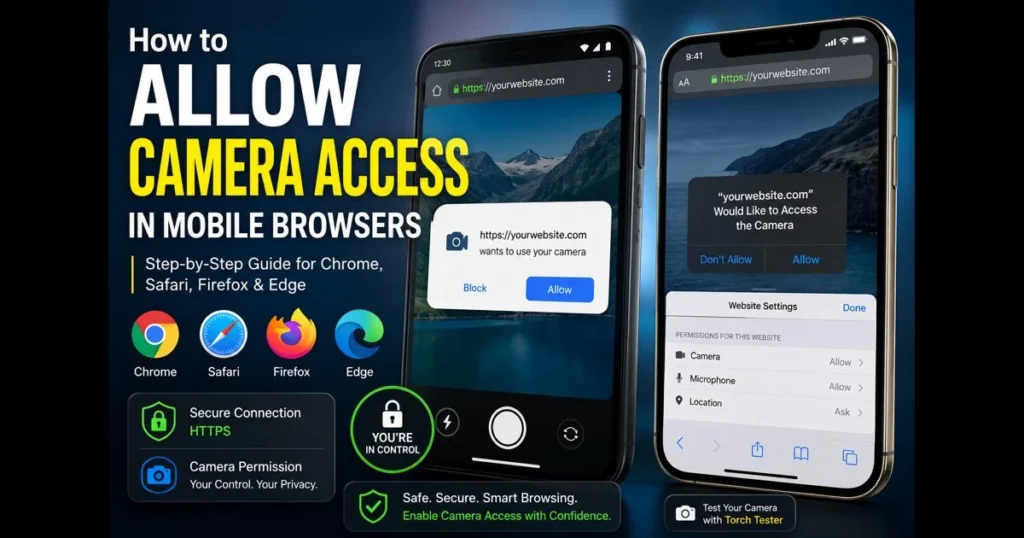
If you’ve ever struggled to enable camera access in your mobile browser, you’re not alone. Mobile sites and web apps now depend on your camera for everything from video calls to QR check-ins and augmented-reality try-ons. This guide details the steps to enable camera access on major mobile browsers, explains the reasons behind permission prompts, and provides practical troubleshooting tips. We’ll also highlight privacy best practices to help you maintain control over camera permissions. Plus, our built-in Torch Tester
Flashlight & Camera Permission Tester
Tests whether your browser can access the camera and control the torch. Works best on Android phones (Chrome). Your camera feed stays on your device — nothing is recorded or uploaded.
- Understanding Browser Camera Permissions
- How to Enable Camera Access in Chrome Mobile
- Allowing Camera Access in Safari on iOS
- Enabling Camera Access in Firefox Mobile
- Camera Access in Microsoft Edge on Mobile
- Best Practices for Managing Camera Permissions
- Common Problems and Solutions
- Future of Camera Access in Browsers
1. Understanding Browser Camera Permissions
What are browser camera permissions?
When a site requires camera access, it must request permission through the browser’s permission system. You’ll see a prompt—typically near the address bar—asking whether to allow or block camera use for that particular site. Your choice becomes a site-specific rule, stored in your mobile browser’s camera settings, so you aren’t prompted every time.
Most sites utilize the MediaDevices.getUserMedia API, which the browser enforces. A key requirement is that modern browsers generally only allow camera access in a secure context—either HTTPS or localhost for development. If a site operates over plain HTTP, you may not see the permission prompt. (See: W3C Media Capture.)
Why is camera access necessary for web applications?
Many features rely on live video input: scanning barcodes, capturing receipts, and video support chats are just a few examples. Note that some specialized workflows—such as remote proctoring—may not work uniformly in standard mobile browsers and often require a desktop browser or a dedicated app from the provider. This necessity explains the frequent mention of browser camera permissions in app instructions. Developers can request specific cameras (front or rear), control resolution, and—on some Android devices—access the torch through advanced settings. Clear prompts and user-friendly interfaces help safeguard privacy while enabling rich in-browser experiences.
2. How to Enable Camera Access in Chrome Mobile
Step-by-step guide to enable camera in Chrome mobile settings
For Android (Google Chrome):
- Open the site that requires your camera. When prompted, tap Allow.
- If no prompt appears, tap the lock icon in the address bar > Permissions or Site settings > Camera > Allow.
- To set a global rule: Menu (⋮) > Settings > Site settings > Camera. Ensure it’s toggled on and set to “Ask first.”
- Confirm the site uses HTTPS; without it, Chrome may not request access.
For iPhone/iPad (Chrome on iOS):
- Go to iOS Settings > Chrome > Camera and enable access.
- Open Chrome, visit the site, and choose Allow when prompted.
After enabling camera access, verify functionality with a quick test capture or our Torch Tester
Flashlight & Camera Permission Tester
Tests whether your browser can access the camera and control the torch. Works best on Android phones (Chrome). Your camera feed stays on your device — nothing is recorded or uploaded.
Common issues and troubleshooting tips for Chrome mobile
- No prompt? Clear the rule: lock icon > Permissions > Reset, then reload the page.
- Another app might be using the camera. Close background apps and try again.
- On work phones, device policies can block camera access. Check your Work Profile or admin rules.
- Still stuck? Chrome Menu (⋮) > Settings > Privacy and security > Clear browsing data for the affected site, then retest.
- Use our built-in Torch Tester to isolate whether the issue is with the site or the device.
Flashlight & Camera Permission Tester
Tests whether your browser can access the camera and control the torch. Works best on Android phones (Chrome). Your camera feed stays on your device — nothing is recorded or uploaded.
3. Allowing Camera Access in Safari on iOS
Steps to grant camera permissions in Safari
Safari simplifies the permission process and provides clear per-site control. Here’s the best approach:
- Open the site in Safari. When the camera prompt appears, tap Allow.
- To set defaults: iOS Settings > Safari > Camera > choose Allow, Deny, or Ask.
- From a page: tap the “aA” icon > Website Settings > Camera > Allow.
- If Safari doesn’t prompt, ensure the site is using HTTPS.
Safari relies on system controls. If you previously denied permission, reset it in Settings > Safari > Camera and revisit the site.
Managing camera access for specific websites in Safari
Adjust permissions for individual sites from the “aA” > Website Settings panel, or access iOS Settings > Safari > Per-Website Settings to review entries. If you’re testing torch behavior, remember that iOS support for LED control is limited; some demos may mention a camera permission for flash, but actual torch toggling often depends on hardware and browser support rather than simple settings.
4. Enabling Camera Access in Firefox Mobile
How to allow camera access in Firefox mobile settings
On Android:
- Visit the site and accept the camera prompt.
- To manage defaults: Firefox Menu (⋮) > Settings > Site permissions > Camera > set “Ask” and review exceptions.
On iOS (Firefox uses the system WebKit engine):
- Go to iOS Settings > Firefox > Camera and enable access.
- Open Firefox, reload the site, and allow when prompted.
This process covers both global controls and per-site prompts, ensuring your mobile browser camera settings remain consistent across sessions.
Handling permissions for individual sites in Firefox
Tap the lock icon on a site to review or clear its rule. If you accidentally blocked the camera, remove the exception and reload. For persistent issues, clear the site’s data (Menu > Settings > Delete browsing data) for a fresh start and try again.
5. Camera Access in Microsoft Edge on Mobile
Steps to enable camera permissions in Edge
On Android:
- Open the site and accept the camera prompt.
- To adjust defaults: Edge Menu (⋮) > Settings > Site permissions > Camera. Toggle on and keep “Ask first.”
On iOS:
- Go to iOS Settings > Microsoft Edge > Camera and enable access.
- Return to Edge, reload the site, and tap Allow on the prompt.
If your use case involves torch control, some Android devices allow it via the browser torch api through media track constraints. You can use Torch Tester
Flashlight & Camera Permission Tester
Tests whether your browser can access the camera and control the torch. Works best on Android phones (Chrome). Your camera feed stays on your device — nothing is recorded or uploaded.
Troubleshooting camera access issues in Edge mobile
- Corporate policies may block camera access on managed devices. Check with your IT department if prompts don’t appear.
- Ensure the site uses HTTPS; otherwise, the request may fail without notification.
- Close other apps that might be using the camera (e.g., video chat, barcode scanner), then retry.
- Update Edge and your OS to benefit from the latest permission and camera driver fixes.
- Run a quick flashlight test online with Torch Tester to confirm both capture and torch permissions on Android.
Flashlight & Camera Permission Tester
Tests whether your browser can access the camera and control the torch. Works best on Android phones (Chrome). Your camera feed stays on your device — nothing is recorded or uploaded.
6. Best Practices for Managing Camera Permissions
How to review and revoke camera permissions
Keep a short allowlist and review it regularly:
- Chrome/Edge/Firefox on Android: Settings > Site settings (or Site permissions) > Camera. Remove entries you no longer trust.
- Safari on iOS: Settings > Safari > Camera and Per-Website Settings. Switch sites back to Ask if needed.
- Firefox Focus (Android/iOS): Because Focus is designed to erase browsing data, site-specific camera permissions are short-lived. Manage app-level camera access via OS settings (Android: Settings > Apps > Firefox Focus > Permissions > Camera; iOS: Settings > Firefox Focus > Camera), and be prepared to re-allow the camera per site. If a site’s camera request is blocked by tracking protection, temporarily disable protections for that site using the shield toggle.
- OS-level checks: Android Settings > Apps > Permissions > Camera; iOS Settings > Privacy & Security > Camera. Confirm your browser has access.
When in doubt, reset a site’s rule, reload, and allow access only when the purpose is clear. This strategy enhances your camera access practices.
Ensuring user privacy while using camera features
Look for the lock icon and the correct domain before granting access. Avoid giving camera permissions to unfamiliar sites, and close the tab when done. If a site requests the rear camera without justification, switch to the front camera or deny permission. Cover the lens when testing unfamiliar demos to reinforce privacy without sacrificing functionality.
7. Common Problems and Solutions
Addressing common issues when granting camera access
- Site on HTTP: Switch to HTTPS. Many browsers block getUserMedia on insecure origins.
- Accidental “Block”: Use the lock icon or site settings to reset the permission.
- Camera in use: Close any video apps, barcode scanners, or system camera, then retry.
- Content blockers: Disable them for the site if scripts requesting the camera are being filtered.
- Iframes: If the camera request originates in an embedded frame, the parent page must allow it via Permissions Policy (and the frame must include allow=”camera”).
- Torch not responding: True torch control depends on device hardware and browser support for relevant constraints, even with camera permission for flash.
What to do if camera access isn’t working as expected
- Reload the page and try a different camera (front/rear) if that option is available.
- Reset the site’s permission rule and allow access again.
- Close all background apps that might be using the camera.
- Update your browser and OS; restart the device.
- Clear site data/cookies for a fresh start.
- Try another browser to isolate a browser-specific issue.
- Run Torch Tester to verify that the browser can open the camera stream and toggle the torch on supported Android devices. This helps pinpoint whether the issue lies with the site or the environment.
Flashlight & Camera Permission Tester
Tests whether your browser can access the camera and control the torch. Works best on Android phones (Chrome). Your camera feed stays on your device — nothing is recorded or uploaded.
These steps address most camera access troubleshooting scenarios you’re likely to encounter.
8. Future of Camera Access in Browsers
Trends and advancements in browser technology regarding camera use
Mobile browsers are continuously refining media capture capabilities: expect smoother device selection (front, rear, ultra-wide), pan-tilt-zoom controls for compatible cameras, and enhanced background effects during WebRTC calls. On some Android devices, the ImageCapture API can expose torch capability as a constraint, enabling many “web flashlight” demos. As support converges, a more consistent browser torch API experience will simplify testing and deploying camera-dependent features. As of 2026, these improvements are rolling out gradually; expect incremental convergence across major mobile browsers over the next 12–24 months.
Developers are also focusing on performance-friendly pipelines for effects like background blur and virtual backgrounds that run locally on devices. This means richer web applications can utilize camera features without sending video to remote servers. This work is expected to mature through 2026 based on current trends.
Impact of privacy regulations on camera access
Regulations and platform policies are driving clearer prompts, site-scoped permissions, and simpler revocation processes. Expect shorter permission lifetimes in some contexts, more obvious indicators of camera activity, and stricter rules for embedded content. For users, this shift enhances control, making it visible, reversible, and predictable. These changes are likely to continue tightening through 2026 as platform policies evolve.
You now have the steps, insights, and habits to navigate camera access confidently. Open your browser, grant access on a trusted site, and run our Torch Tester
Flashlight & Camera Permission Tester
Tests whether your browser can access the camera and control the torch. Works best on Android phones (Chrome). Your camera feed stays on your device — nothing is recorded or uploaded.
Frequently Asked Questions
How do I allow camera access in my browser?
To allow camera access in your browser, you typically need to click on the lock icon in the address bar when visiting a site that requests camera access. From there, you can adjust the camera settings to ‘Allow’.
What should I do if my browser is not asking for camera permission?
If your browser is not prompting for camera permission, check your browser settings to ensure that camera access is enabled and that no extensions are blocking it.
Can I revoke camera access later?
Yes, you can revoke camera access at any time by going to your browser’s settings, finding the site permissions section, and changing the camera access settings back to ‘Block’.