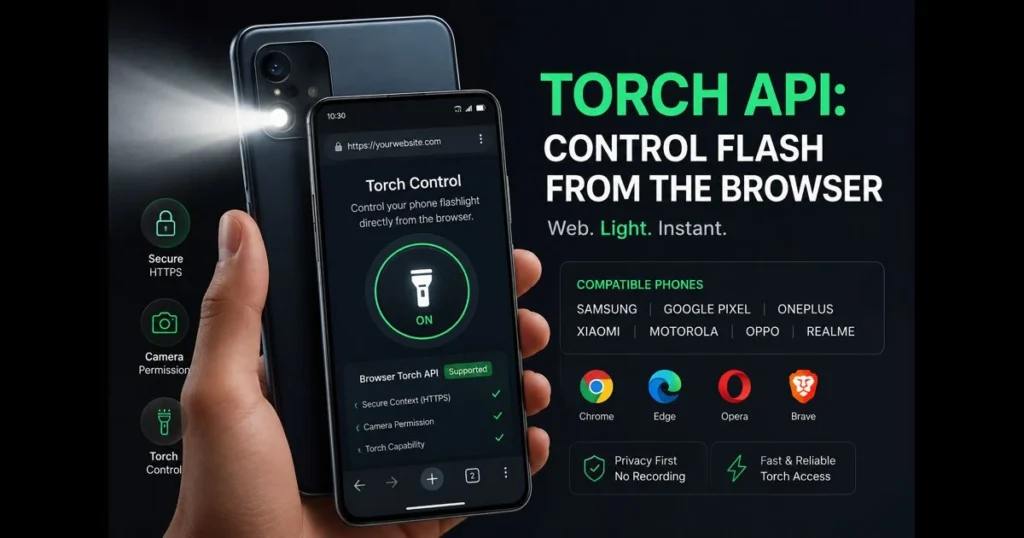
The browser Torch API enables websites to toggle a phone’s flashlight without requiring a native app. For developers, this means a genuine web flashlight API accessible through standard web technologies; for users, it translates to instant light when scanning a barcode, verifying an ID, or illuminating a repair in a dim area. This guide outlines how torch control operates in a torch control browser flow, the underlying mechanics, which smartphones typically support it, and how to implement it responsibly. Plus, we’ll introduce our Torch Tester tool, allowing you to quickly test flashlight functionality on your device.
- Understanding the Torch API
- How the Web Flashlight API Works
- Compatibility of the Torch API with Smartphones
- Enabling Torch Control in Browsers
- Potential Challenges and Limitations
- Future of the Torch API and Web Flashlight Technology
- Conclusion
1. Understanding the Torch API
Definition and Purpose of the Torch API
The Torch API allows a web page to control the device’s rear-camera LED via media track constraints, rather than through a separate API object. In practice, the page requests camera access, checks if the camera track supports torch functionality, and applies constraints to turn the LED on while the video stream is active. (See: Web API – Wikipedia.)
This capability exists for a simple reason: many tasks are enhanced with light. Barcode scanning, document capture, inventory management, and accessibility features all benefit from on-demand smartphone flashlight control, eliminating the need for a separate native app.
How the Torch API Integrates with Web Technologies
Developers utilize three core components:
- MediaDevices.getUserMedia for camera access, typically selecting the rear camera (facingMode: environment).
- MediaStreamTrack capabilities and constraints, allowing tracks to expose a torch capability and accept constraints to toggle it.
- The Permissions model and secure contexts, ensuring pages request and gain user trust appropriately.
This approach is standard in modern mobile web development. No plugins or wrappers are necessary; the same page can function within a PWA, a responsive site, or a kiosk-mode web app.
2. How the Web Flashlight API Works
Technical Overview of the API’s Functionality
Essentially, torch control is a property of the camera video track, not a distinct switch. A page with camera access can inspect the track’s capabilities to determine if torch is available. If it is, the page can request that the LED be activated by applying an advanced constraint to that track.
However, certain conditions must be met. The page must be served over HTTPS, must be in the foreground, and the action should be initiated by a user gesture (like tapping a button). The LED turns off when the track stops, access is revoked, or the page commands it to.
Brightness control varies; on many devices, it’s simply on or off. Some implementations may offer intermediate power levels, but coding for binary options is safer. Related reading: allow camera in browser.
Common Use Cases for the Web Flashlight API
- QR/barcode scanning in low-light environments.
- Document capture for onboarding, KYC processes, and warranty documentation.
- Field service checklists and inspections after dark.
- Wayfinding in dark server rooms or backstage areas.
- Accessibility tools that combine large on-screen controls with a quick light toggle.
Our Torch Tester tool helps you validate support and performance quickly; it runs a simple flashlight test online and checks if your track exposes the necessary capability.
3. Compatibility of the Torch API with Smartphones
List of Popular Smartphones That Support the Torch API
Compatibility hinges on three factors: device hardware, operating system camera stack, and browser engine. The best results are typically found on Android devices using Chromium-based browsers.
Phones that generally support torch functionality in Chrome or other Chromium-based browsers include:
- Google Pixel series.
- Samsung Galaxy S, Note, and Galaxy Z Fold and Galaxy Z Flip lines.
- OnePlus numbered series and Nord models.
- Motorola Moto and Edge families.
- Xiaomi, Redmi, and POCO devices.
- Oppo and Realme models.
- Huawei P and Mate series.
Apple iPhone series users should manage expectations. While Safari and other iOS browsers (including Chrome on iOS) utilize the WebKit engine, web pages can request camera access, but system-level torch control is generally not available. This means the LED may remain inaccessible even when video capture functions correctly.
If your target audience primarily uses Android, you can typically implement this feature. For iOS users, offer a graceful fallback—like a high-brightness screen “soft light”—and encourage them to test their device using Torch Tester before relying on LED control.
Factors Affecting Compatibility
- OS camera HAL: Devices with strong Camera2 support are more likely to expose torch functionality.
- Browser engine: Blink/Chromium tends to support the constraint more consistently on Android; WebKit on iOS has less support.
- Permission flow: Users must allow camera access in the browser for any LED control to work.
- Camera selection: Requesting the rear camera (environment) is essential; the front camera generally lacks an LED.
- Page context: Secure context, foreground tab, and active video track are prerequisites.
As browser API compatibility continues to evolve, always test on actual devices rather than relying solely on simulators.
4. Enabling Torch Control in Browsers
Step-by-Step Guide for Developers
- Serve over HTTPS and include a clear Light button that requires user interaction.
- Request rear-camera video: specify facingMode: environment and no audio. This prompts users to allow camera access in the browser.
- Check capabilities: inspect the video track’s capabilities to confirm if torch is available.
- Toggle LED: apply an advanced constraint to the track, e.g., applyConstraints({ advanced: [{ torch: true }] }) to activate, and false to deactivate.
- Handle teardown: stop the track when leaving the page or closing the light, which also turns off the LED.
- Provide a fallback: if the torch capability is missing, offer a white-screen “soft light” mode and guide users to increase brightness.
Our Torch Tester (torch_tester) follows this process behind the scenes, helping you confirm constraint behavior on a specific phone and generating a brief report to share with QA.
Best Practices for Effective Use of the API
- Clarify intent: pair the toggle with a clear label and icon so users understand why the light is activating.
- Respect power and heat: automatically turn off after a reasonable timeout to prevent battery drain or overheating.
- Maintain stable camera framing: alter only the torch constraint; avoid re-requesting the stream when toggling.
- Minimize permissions: request video only; explain that the camera permission for flash is necessary for LED operation, not recording.
- Handle errors gracefully: if constraints fail, inform the user and suggest the fallback.
- Accessibility: ensure the toggle is keyboard- and screen-reader-friendly, and warn users sensitive to bright light.
5. Potential Challenges and Limitations
Common Issues Users May Encounter
- No torch capability exposed: some cameras do not advertise it for web use.
- Incorrect camera active: if the front camera is selected, the LED control will be unavailable.
- Background or locked: the LED may turn off when the page loses focus or the device sleeps.
- Conflicts with other apps: a native camera or flashlight app may block control.
- Network or certificate issues: a valid secure origin is necessary for camera access.
- Inconsistent brightness: some devices may flicker or step brightness unexpectedly when activating the LED.
If something goes wrong, a quick run through Torch Tester and a comparison between browsers (e.g., Chrome vs. another Chromium) can help identify whether the issue stems from hardware, OS, or browser-level problems.
Limitations Regarding Permissions and User Privacy
There’s no way to toggle the LED silently from the web. Users must grant camera access, and the stream should remain active only as long as necessary. This creates healthy friction.
Be upfront about your intentions. Inform users that you’re not recording video, just using the stream to control light; provide a link to your privacy notice, and include an obvious switch to turn off the light. Many teams also add a tooltip the first time someone activates the LED to set clear expectations.
6. Future of the Torch API and Web Flashlight Technology
Trends in Mobile Web Technologies Related to Flashlight Control
The trend is clear: more device features are being standardized, reducing vendor-specific quirks. Camera features that began as experimental flags are gaining stability when they improve capture quality and user safety.
As camera stacks unify across manufacturers, we see fewer inconsistencies and enhanced flashlight feature support on mainstream Android devices. Web packaging through PWAs also promotes consistent permission flows that users can understand.
Predictions for the Torch API
Anticipate incremental improvements rather than a complete overhaul of the API. Likely enhancements include clearer capability reporting, reduced errors when switching cameras, and better exposure of brightness levels when hardware supports it.
As of October 2023, if iOS were to add track-level torch control to its web engine, it would likely spur broader adoption across cross-platform sites. Until then, build with feature detection and test on actual devices to ensure consistent behavior.
7. Conclusion
The web can already activate the light, and that’s a powerful tool. Utilizing standard media constraints within a secure, permissioned framework allows practical torch control without requiring users to install an app. For teams developing scanners, document capture solutions, or field tools, the torch capability addresses significant real-world challenges.
Curious if your device supports the web flashlight API? Use our Torch Tester to conduct a quick flashlight test online, verify browser API compatibility, and share the results with your team. Then, implement a clear UI, thoughtful privacy messaging, and robust fallbacks—ensuring your site shines for users, literally.
Frequently Asked Questions
What is the Browser Torch API?
The Browser Torch API is a programming interface that allows developers to control the functionality of the browser’s built-in torch or flashlight feature. It enables applications to turn the flashlight on and off programmatically, enhancing user experience in mobile web applications.
How can I use the Browser Torch API in my web application?
To use the Browser Torch API, you need to access the appropriate permissions for the device’s camera and flashlight. After obtaining permission, you can call the API methods to toggle the flashlight state within your web application.
Are there any limitations to the Browser Torch API?
Yes, the Browser Torch API may have limitations based on the device and browser compatibility. Not all browsers or devices support this API, and users may have to grant specific permissions for the flashlight functionality to work.