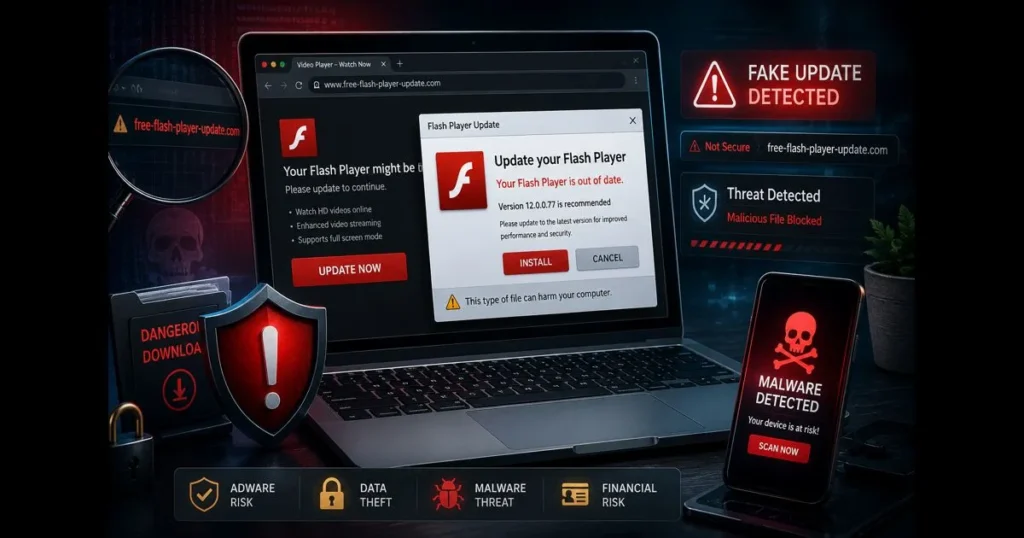
The phrase “fake flash player” is all over shady pop-ups and dubious download sites, promising a quick fix for a “missing plugin.” Don’t take the bait. As Flash Player faded into history, cybercriminals filled the void with convincing look-alike installers that drop adware, steal logins, or open the door to more serious infections. The trick is familiar: an urgent banner claims your video won’t play without an update, leading you to a bogus installer. With a few practical checks and a clear plan, you can avoid this trap, keep your files safe, and protect your accounts. Related reading: why was flash discontinued.
This guide breaks down why Flash vanished, what a fake download looks like, the risks involved, and steps to recover if you’ve clicked on one. You’ll also find safer ways to view old content and simple software safety tips for your less technical friends. Remember this: Adobe no longer offers Flash, so any site claiming to do so is misleading.
- Understanding Flash Player and Its Decline
- What is a Fake Flash Player?
- The Dangers of Fake Flash Player Downloads
- How to Spot a Fake Flash Player Download
- Safe Alternatives to Flash Player
- Steps to Take if You’ve Downloaded a Fake Flash Player
- Educating Others About Fake Flash Player Risks
1. Understanding Flash Player and Its Decline
Overview of Flash Player’s Original Purpose and Features
Flash Player was a browser plugin used for rich, animated experiences, powering everything from early video players and banner ads to interactive games and e-learning modules. Developers wrote ActionScript inside .swf files, embedding them on pages and relying on the plugin for consistent content rendering across browsers. It was the go-to method for cross-platform audio, video, and interactivity before web standards matured. (See: CDC – Flash.)
This convenience came with a trade-off: installing third-party code into your browser created a large attack surface. As mobile devices gained traction and built-in HTML5 audio/video, Canvas, and WebGL emerged, the need for a separate plugin diminished.
Reasons for the Discontinuation of Flash Player Support
Flash was discontinued mainly due to security, performance issues, and the rise of open web standards. Adobe announced Flash Player’s End of Life and advised users to uninstall it; major browsers followed suit. Apple never allowed Flash on iOS due to battery and stability concerns, and desktop browsers phased out plugin architectures that made exploits easier.
Modern standards like HTML5, WebGL, and WebAssembly provide a more secure, efficient alternative. This shift, combined with ongoing vulnerability patching needs, made the plugin model obsolete. Consequently, any “update” you see now is suspect by default.
2. What is a Fake Flash Player?
Definition of Fake Flash Player Downloads
A fake Flash Player is a malicious or unwanted program disguised as a Flash installer or update. It’s often pushed through pop-ups, deceptive interstitials, or compromised sites that insist your media “won’t play without Flash.” The download may look convincing—right icon, familiar copy, even a forged certificate—but its goal is to install adware, trojans, browser hijackers, or downloaders that fetch more malware.
Common Characteristics of Fake Software
These impostors share telltale traits: domains that aren’t Adobe; auto-downloading installers the moment the page loads; bundled “utilities”; requests to disable antivirus; and odd file mismatches, like a .exe offered to Mac users. You might also encounter forced permissions, prompts to add a “video codec” browser extension, or a fake progress bar that never verifies the publisher. The social engineering is the hook; the payload is the problem.
3. The Dangers of Fake Flash Player Downloads
How Fake Flash Player Can Lead to Malware Infections
Once launched, a bogus installer can modify browser settings, inject ads, steal cookies, or drop a background process that communicates with remote servers. It might establish persistence via startup tasks, change your DNS settings, or deploy a remote-access trojan. Some packages add cryptomining components that strain your CPU, while others redirect your searches to affiliate pages that monetize your clicks.
You might notice extra ads or a slower machine, but underneath, the malware could be stealing passwords or scanning your network for more targets. A “free update” becomes a foothold for broader compromise.
Examples of Potential Threats, Including Flash Player Virus
Security researchers have identified families that spread through fake Flash updates on both Windows and macOS. Historically, the Shlayer campaign (widely documented by Malwarebytes Labs and Kaspersky) was a prominent macOS threat delivered via bogus Flash prompts, especially around 2018–2020. As of late 2023 and beyond, the Flash-branded lure still appears, but activity has shifted toward other families—on macOS, AdLoad/UpdateAgent variants are more commonly observed; on Windows, operators of FakeUpdates/SocGholish often impersonate browser or codec updates. The term “flash player virus” is a catch‑all for such bundles, which may include adware, trojans, or droppers that fetch ransomware. Names change, but the ruse is consistent: an urgent “update” prompt leading to something entirely different.
4. How to Spot a Fake Flash Player Download
Indicators of a Fraudulent Download Site
There’s one definitive signal: Adobe no longer distributes Flash Player. Any page offering a “latest version” is already off the mark. Beyond that, watch for these warning signs:
- Non‑Adobe domain names or URLs with unusual words, hyphens, or odd country codes.
- Auto-started downloads before you click anything or a page that forces a save dialog.
- “Update required” overlays on streaming sites that previously worked without Flash.
- Requests to disable antivirus or allow unknown system changes.
- File mismatches and sloppy details: a Windows .exe shown to macOS users, outdated logos, typos.
- Promises of a “codec pack” or browser extension to “enable Flash,” which was never needed.
If you’ve already downloaded the installer but haven’t run it yet, check its digital signature. A legitimate Adobe signature will read “Adobe Inc.”; anything unsigned or from an unrelated publisher is a red flag. On macOS, Control-click the app and select Open to inspect the identified developer. On Windows, view file Properties → Digital Signatures. Don’t let curiosity override caution.
Comparison of Legitimate vs. Fake Download Pages
Legitimate: the real Adobe page highlights Flash’s retirement and guides you to remove it. Your browser vendors echo this message, with no downloads offered. Fake: glossy pages with a big green button, countdown timers, “required for video,” or prompts claiming your plugin is “out of date.”
When in doubt, run a quick flash compatibility check before trusting any prompt. This site includes a built-in Flash Checker that tells you whether a page actually tries to load Flash and what your browser supports. If that tool shows no Flash content, you can ignore the prompt entirely.
People often ask if any Flash Player download options remain. They don’t. Since support ended, there’s no legitimate source, and reputable browsers block the plugin. Treat every “update” as hostile until proven otherwise.
5. Safe Alternatives to Flash Player
Recommended Software That Can Replace Flash Player Functionalities
Most modern sites use standards that don’t require plugins. HTML5 audio/video handles streaming, Canvas and WebGL cover animation and graphics, while WebAssembly powers complex apps once reserved for plugins. Organizations maintaining legacy training or dashboards should consider migrating these experiences to current standards instead of relying on any Flash dependency. These standards power new content; they do not natively run legacy .swf files.
For archived games or educational content that was built in Flash, emulation or preservation projects are the right approach—not general “modern web standards.” Ruffle is a popular open-source Flash emulator purpose-built for running legacy .swf files in a safer, sandboxed environment, either in the browser or on the desktop. For curated, offline access to preserved Flash content, BlueMaxima’s Flashpoint is widely used in the preservation community. Other options sometimes used for legacy access include Simply Flash (for running select SWF content) and enterprise-focused solutions; note that CheerpJ targets legacy Java applets—not Flash—but is often mentioned alongside Flash solutions when teams inventory old plugin content. None of these are drop-in replacements for production systems; they exist to access historical material without reinstalling the defunct plugin.
It’s natural to wonder: are flash files safe? They can contain scripts and behaviors that were exploitable in the plugin era. Running them through an emulator is safer than using the original plugin, but treat unknown files cautiously, especially if they come from random download portals.
Best Practices for Downloading Software Safely
- Go straight to the source: vendor websites, official app stores, or your OS package manager.
- Verify the publisher and signature; avoid mirrors and “download manager” wrappers.
- Beware of sponsored buttons and deceptive ads near the real download link.
- Keep your OS, browser, and security tools updated to enhance malware prevention.
- Use non-admin accounts for daily tasks; escalate only when necessary to install software.
- Consider checksums from the publisher when available to confirm file integrity.
These safe downloading practices aren’t just for Flash relics. They’re essential online security habits that keep impostors at bay, whether the bait is a video codec, a PDF viewer, or a fake driver utility. If you’re assisting someone less technical, write down three simple software safety tips: download from the official site, never from a pop-up; don’t run files you didn’t request; and consult a trusted person before installing something new.
6. Steps to Take if You’ve Downloaded a Fake Flash Player
Immediate Actions to Remove Malware
Act quickly to limit damage, but don’t panic.
- Disconnect from the internet immediately. Pull the network cable or turn off Wi-Fi to stop data exfiltration or secondary downloads.
- Don’t enter any passwords or payment details until you’ve cleaned up. Recent browser sessions may be compromised.
- On Windows, run Microsoft Defender’s Offline scan; on macOS, ensure the system is updated so XProtect and MRT have current definitions.
- Uninstall suspicious apps and browser extensions you don’t recognize. On Windows, check Apps & Features and Task Manager → Startup; on macOS, review Applications and System Settings → Login Items.
- Reset affected browsers to default settings, clear caches, and revoke notification permissions granted to suspicious sites.
If encryption or a lock screen appears, power off and seek professional help—don’t keep interacting with ransomware prompts. For everything else, a thorough cleanup usually suffices.
Tools and Software for Malware Detection and Removal
Use a trusted scanner from a known vendor. Good options include Microsoft Defender (built into Windows), Malwarebytes Free, Sophos Home, and ESET’s online scanner. Run more than one reputable tool sequentially to catch different malware families. Keep logs and quarantine files instead of outright deleting them in case you need to restore a false positive.
After cleaning, take a few resilience steps: Change passwords and enable MFA on email, banking, and password manager accounts; review account activity for unfamiliar logins; and monitor statements for unauthorized charges. If the fake installer came from your workplace device, notify IT. For personal devices, consider filing a report with your national cybercrime unit and your bank if payment data may have been exposed. For a refresher, search this site for guides on how to remove malware to follow a checklist step by step.
7. Educating Others About Fake Flash Player Risks
The Importance of Spreading Awareness About Fake Software
These scams thrive on urgency and nostalgia—“click here to watch.” A simple rule shared widely can stop them: Flash is retired; there are no updates. Inform family and coworkers that any “Flash required” prompt is suspicious and advise them to take screenshots instead of clicking.
How to Educate Friends and Family on Safe Downloading Practices
Keep it actionable. Show them where to find vendor download pages, how to read the browser’s address bar, and how to spot forced downloads. Share this site’s flash compatibility check so they can verify whether a page actually uses Flash before reacting to a prompt. Encourage a default-deny habit: if you didn’t seek it out, don’t install it. Pair this with automatic updates, a password manager, and a baseline security suite to reduce snap-judgment mistakes.
If you lead a team, incorporate these points into onboarding and quarterly refreshers. Short, real-world examples resonate better than lengthy policies—include a screenshot of a fake update and a one-liner: “Close the tab and report it.”
One last reminder for mentors: celebrate the “I asked first” moment. The habit of pausing before a click lays the foundation for better online security.
Flash had a long, creative run, but its time has passed. That’s why opportunists now use its name as bait. Treat every “update” prompt as an attack until proven otherwise, use emulators or modern web standards when you need to view old content, and keep your defenses current. If you’ve already clicked, start the cleanup steps now, then share this guide with someone who could benefit. Ready to verify a page? Use the site’s Flash Checker for a quick readout, then share three simple rules: stick to official sources, slow down before installing, and never trust a pop-up promising a miracle fix.
Frequently Asked Questions
What is a fake Flash Player?
A fake Flash Player is a malicious software that masquerades as the legitimate Adobe Flash Player, often used to trick users into downloading harmful malware or adware onto their devices.
How can I identify a fake Flash Player?
You can identify a fake Flash Player by checking the source of the download, ensuring it is from the official Adobe website, and looking for unusual behavior after installation, such as excessive ads or system slowdowns.
What should I do if I accidentally installed a fake Flash Player?
If you have installed a fake Flash Player, immediately uninstall it from your device, run a full antivirus scan to remove any malware, and change your passwords to secure your accounts.