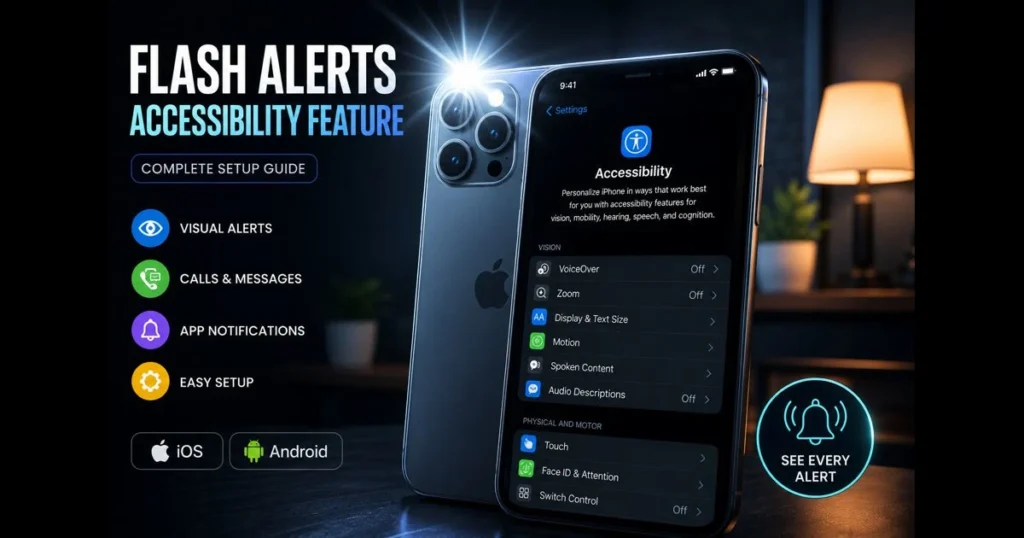
Flash alerts are more than just a convenience—they’re essential for many. When ringtones fail, a bright, unmistakable flash signals calls, messages, alarms, and important app updates. For the deaf and hard of hearing, visual alerts are critical for communication and safety. This guide breaks down what flash alerts are, their significance, and how to set them up on iOS and Android. We’ll also explore customization options, integration with other tools, and troubleshooting tips to ensure your phone’s light cues are dependable when it matters most.
- Understanding Flash Alerts
- Benefits of Flash Alerts for Accessibility
- Setting Up Flash Alerts on Smartphones
- Customizing Flash Alerts
- Using Flash Alerts with Other Accessibility Features
- Flash Alerts in Different Environments
- Troubleshooting Common Issues
- Future of Flash Alerts in Accessibility
Understanding Flash Alerts
Flash alerts use your phone’s camera flash or screen to pulse light for incoming calls, texts, or app notifications. Think of them as visual ringtones—easy to see from across a room, even when the phone is silent. (Note: public health agencies like the CDC offer general safety guidance on alerts, but phone-based flash notifications are accessibility features provided by device makers and apps.)
The goal is straightforward: transform sound into sight. For those who are deaf or hard of hearing, flash notifications provide timely, perceptible signals. They are also invaluable in noisy environments where sound can be drowned out or in quiet settings where audio is not suitable.
Because light is unmistakable, flash alerts help minimize missed messages and enhance smartphone notifications. They work alongside vibrations and on-screen alerts to create a robust notification system.
Benefits of Flash Alerts for Accessibility
Visual alerts are powerful communication tools. A flash can cut through background noise more effectively than a subtle vibration, prompting immediate attention from users.
Safety is another key advantage. A flashing screen remains visible even when headphones are on or during meetings. In situations where audio cues are muted—like workshops, concerts, or public transit—flashes can prompt quicker reactions than fading banners.
For families and caregivers, flash alerts foster a shared understanding. Recognizing the light pattern for a call from school or a medical alert enhances response times and reduces anxiety.
Setting Up Flash Alerts on Smartphones
iOS Devices: Step-by-Step Guide
On iPhone, flash alerts utilize the rear LED and, in some cases, the screen. Here’s how to enable them:
- Open Settings and tap Accessibility.
- Select Audio/Visual and find LED Flash for Alerts.
- Toggle on LED Flash for Alerts. To limit flashing to when the ringer is off, enable Flash on Silent.
For more contextual behavior, use Focus modes. In a custom Work or Sleep Focus, allow notifications only from select contacts or apps. This focuses visual signals on what’s important during those times.
After setup, perform a quick flash test to ensure visibility from your usual angles. You can either call yourself from another line or use the site’s built-in tool: open our flash test and follow the on-screen instructions. If you want finer control over app behaviors, check each app’s alert style under Settings > Notifications to align your flash notification settings with the banners and alerts you permit.
If you need more granular control or additional cues, third‑party options such as Hearing Aid for iPhone can layer visual alerts on top of system notifications and offer extra customization. Be sure to allow notification access and Background App Refresh so these apps can trigger flashes reliably.
Android Devices: Step-by-Step Guide
Android supports both camera LED and screen-based flashes, but the exact setup can vary by manufacturer. Here’s a general approach for recent devices:
- Open Settings and use the search bar for “Flash notifications,” “LED,” or “Accessibility.”
- Check under Accessibility > Hearing enhancements or Notifications > Advanced for options like Flash notifications, Camera flash, or Screen flash.
- Enable your preferred option (camera, screen, or both). Some devices allow you to select which apps trigger flashes.
Due to variations in Android skins, preview the setting where available, placing the phone on a table to ensure visibility. If your model supports color or pattern options for screen flashes, set them so important contacts stand out.
Finally, use our screen flash test to confirm functionality with the screen on and off, including in Do Not Disturb mode. If the flash doesn’t appear, review flash notification settings and app categories to ensure “urgent” or “high priority” status is enabled where necessary.
On Android, third‑party tools like FlashAlert can provide per‑app flash behaviors and scheduling beyond the built‑in settings. Grant the required notification/listening permissions and exclude the app from battery optimizations to ensure consistent flashing.
Customizing Flash Alerts
Light cues can be as distinctive as ringtones—if your device supports it. The aim is to make high-priority alerts visually distinguishable from routine notifications.
Choosing colors and patterns: Options vary by device. Many Android phones allow you to select screen-flash colors or animations, while the camera LED remains white. iPhones primarily use a white LED, but you can create simulated custom screen flashes using Shortcuts and Focus automations (e.g., displaying a bright full-screen color when a favorite contact messages you). Third-party apps on Android can also enable per-contact or per-app behaviors with overlays or lock-screen effects.
Adjusting brightness and sensitivity: Screen-based flashes will follow your display brightness settings. If you need stronger cues indoors, increase the brightness slider. To avoid glare at night, enable Night Shift (iOS) or Extra Dim (Android) or adjust the white point on iOS. While camera LED intensity is usually fixed, translucent cases can diffuse light, softening harsh brightness. If you’re sensitive to flicker, opt for slower, fewer pulses and favor warmer tones for screen flashes when possible.
Using Flash Alerts with Other Accessibility Features
Flashes are most effective when combined with other alerts. Pair them with strong vibration patterns for tactile and visual cues. On iPhone, customize vibrations per contact; on Android, set unique vibration patterns in your contacts app. This dual approach minimizes missed calls without relying solely on sound.
Flash alerts also integrate smoothly with system-level accessibility features. Live Captions (on many Android devices) or transcriptions in calling apps can provide context once the flash captures your attention. iOS Sound Recognition detects environmental cues—like alarms or doorbells—and triggers notifications that your flash can highlight. Together, these services transform your phone into a hub for silent yet visible awareness.
At home, consider extending flashes beyond the phone. Smart bulbs or light strips can be programmed to pulse when specific smartphone notifications arrive, enhancing visibility throughout your space. Just ensure these automations respect quiet hours to avoid disturbance during the night.
Flash Alerts in Different Environments
Home Settings: Customizing Alerts for Family Notifications
Focus on prioritizing people and tasks. Create contact groups—family, caregivers, schools—and assign each a unique screen-flash color or pattern if your device allows it. At bedtime, restrict notifications to only emergency contacts during Focus or Do Not Disturb, ensuring critical flashes are still visible.
Position the device for optimal visibility. Angle the camera LED toward an open space or prop the screen at a shallow angle. This small adjustment ensures visual alerts are noticeable whether you’re cooking, working, or watching TV. In shared spaces, consider connecting the phone to a smart lamp routine that pulses gently, ensuring everyone notices the alert, not just the person closest to the phone.
Workplace Settings: Ensuring Compliance with Accessibility Standards
Employers should avoid relying solely on audio alarms or desktop notifications. Integrate building systems (like wall-mounted strobes) with personal devices set up for flash alerts to provide redundancy. In open office environments, encourage staff requiring visual alerts to use flashes in conjunction with vibrations and to place devices screen-up, ensuring they are discreet yet visible.
From a policy perspective, collaborate with IT to ensure necessary behaviors are permitted: allow high-priority smartphone notifications from specific apps, ensure mobile device management doesn’t disable LED or screen flashes, and document accommodations for consistency across device upgrades. Training is crucial—managers must understand that flashes serve as accessibility tools, not distractions.
Troubleshooting Common Issues
Flash Alerts Not Working: Common Fixes
Most issues stem from a few toggles. Start with a quick test: use our screen flash test or trigger a message from another device. If the flash doesn’t activate, consult this checklist:
- Ensure the main toggle is on: iOS > Accessibility > Audio/Visual > LED Flash for Alerts; Android > search for Flash notifications and enable Camera and/or Screen.
- Check Do Not Disturb/Focus. If enabled, confirm allowed contacts/apps can bypass it or that “Flash on Silent” is activated (iOS).
- Temporarily disable Battery Saver/Low Power Mode; these modes can suppress background behaviors.
- Review per-app notification categories. On Android, mark important channels as “urgent” or “high priority” for proper alert treatment.
- Ensure the flashlight isn’t in use; if the torch is active, LED alerts won’t trigger.
- Inspect your case and camera window; opaque covers or dirt can block the LED.
- Restart the phone to clear temporary conflicts affecting the camera LED.
If screen flashes fail but banners appear, check for features altering visuals—screen readers, reduced motion, or aggressive power optimizations from OEM utilities—and test again after adjusting those settings.
Adjusting Device Settings for Optimal Performance
Minor adjustments can enhance reliability. On iPhone, set critical contacts to Emergency Bypass to ensure alerts come through even during Focus mode—then verify your flash notification settings are functioning as intended. On Android, designate key apps as unrestricted in battery settings and allow notifications on the lock screen to ensure flashes activate when the display is off.
Optimize your environment too. If you often miss LED flashes with the phone face down, switch to screen flashes or position the device upright in a dock. In brightly lit offices, prefer the camera LED; in dim environments, a softer screen flash is less jarring.
Future of Flash Alerts in Accessibility
Emerging Technologies and Innovations
Flash alerts are on the brink of becoming smarter. Expect improved cross-device synchronization, where a call initiates a coordinated light pulse on your phone, watch, and smart lamp. As notification standards progress, developers might attach visual characteristics—color, rhythm, urgency—to alerts, allowing systems to translate them into light without additional setup.
Adaptive behavior is also on the horizon. Devices could learn your lighting conditions and distance to automatically select between camera and screen flashes, adjust brightness, or extend pulses while you’re on the move. For those sensitive to flicker, systems may default to steady fades instead of rapid flashes.
Potential Improvements and User Feedback
Users frequently request clearer previews, per-contact colors for screen flashes, and refined scheduling—such as silencing flashes except for select contacts after 10 p.m. A dedicated “test flash notifications” button at the system level would allow users to confirm settings instantly without needing to send a message.
If you rely on these features, provide feedback through your device’s accessibility feedback channels and app store reviews. Real-world suggestions—like longer pulses for better visibility or a quick toggle in Quick Settings/Control Center—drive future enhancements.
Ready to enhance your alerts? Spend five minutes enabling flashes, customizing patterns for key contacts, and testing visibility with our tool. Share this guide with someone who could benefit from clearer signals, and if implementing at work, coordinate with IT to maintain accessibility features across devices and updates. Your phone can communicate in light—ensure it conveys what you need, when you need it.
Frequently Asked Questions
What are flash alerts and how do they improve accessibility?
Flash alerts are visual notifications that use bright, flashing lights to capture attention. They improve accessibility by providing an alternative way for individuals with hearing impairments to receive important information or warnings.
Are flash alerts suitable for all environments?
While flash alerts can be beneficial in many settings, they may not be suitable for all environments. Bright flashing lights can be distracting or even harmful in certain situations, such as in emergency medical facilities or environments with individuals prone to seizures.
How can organizations implement flash alerts effectively?
Organizations can implement flash alerts by integrating them into existing alert systems, ensuring they are visible and unobtrusive. It’s also important to test the alerts in various scenarios to ensure they effectively reach the intended audience without causing unnecessary distractions.