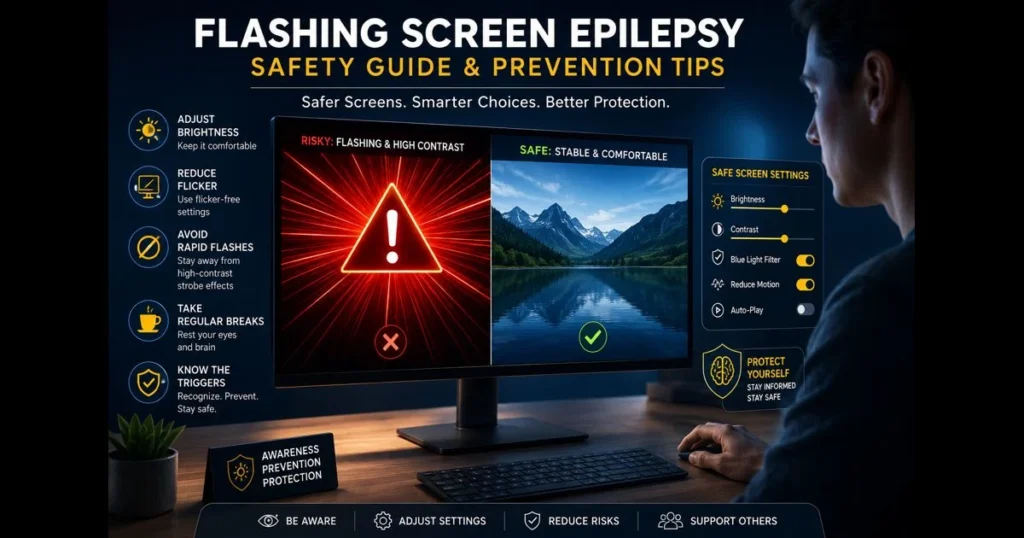
Flashing screens can trigger more than just eye strain. For individuals with photosensitivity, rapid flicker or high-contrast patterns can provoke seizures—a concern often referred to as flashing screen epilepsy. If you or someone you care about is sensitive to light, understanding the causes of these triggers and how to mitigate risky visuals is essential. This guide offers practical steps for safer viewing, tips for creators to design responsibly, and resources to advocate for yourself. It’s crafted for current readers, with timeless advice you can apply anytime.
Here, you’ll discover typical triggers, ways to adjust device settings, and standards professionals follow to keep flashing content within safer limits. Content creators will find concrete safety guidelines, including how to structure edits and which tools can analyze a clip before it goes public. If you’re here because a recent video, game, or notification felt “too bright, too fast,” you’re in the right place. (See: Photosensitive epilepsy – Wikipedia.)
- Understanding Photosensitive Epilepsy
- Common Sources of Flashing Screens
- Recognizing Symptoms and Triggers
- Flash Safety Guidelines for Screen Use
- Adjusting Screen Settings for Safety
- Legal and Regulatory Considerations
- Support and Resources for Affected Individuals
- Future Trends in Screen Technology and Safety
1. Understanding Photosensitive Epilepsy
Definition and prevalence of photosensitive epilepsy
Photosensitive epilepsy is a type of epilepsy where seizures can be triggered by visual stimuli—primarily flashing lights, rapid brightness changes, or certain repeating patterns. This condition often begins in childhood or adolescence, but adults can be affected too. Sensitivity varies: some individuals react only to specific effects, while others are more broadly impacted.
“Photosensitive” refers to particular visual stimuli, not just any bright light. It’s the interplay of brightness, contrast, and timing—how quickly the image alternates—that is most significant.
How flashing lights and patterns can trigger seizures
Human vision and the brain’s visual cortex respond to rhythmic stimulation. When the flicker rate falls within a sensitive range—generally between 3 and 30 flashes per second—it can provoke abnormal activity in susceptible individuals. Large, high-contrast areas that alternate light and dark, or vivid red flashes, are particularly provocative. Patterns like stripes or checkerboards create repetitive, high-contrast edges that can appear to “pulse” as you scroll or move your eyes.
Factors such as distance, ambient lighting, and screen size can influence risk. A large bright image in a dark room stimulates more of the retina than a small image in a well-lit space, underscoring how context matters.
2. Common Sources of Flashing Screens
Types of screens that may cause issues, including TVs, computers, and mobile devices
Any luminous display can produce harmful effects if the content flickers or if the panel itself introduces flicker. TVs, computer monitors, tablets, phones, wearables, VR headsets, and digital billboards all qualify as potential triggers under the right conditions. The type of display technology also contributes:
- Some OLED and LED panels use pulse-width modulation (PWM) to dim, creating low-frequency flicker at specific brightness levels.
- High refresh rate gaming monitors reduce motion blur but can still display risky content if the source flashes by design.
- VR headsets enhance immersion and wide fields of view, intensifying visual stimulation.
Even displays marketed as “flicker-free” can pose risks if the content itself flashes. Hardware and content risks can accumulate.
Examples of content that typically features flashing lights
Music videos with strobe effects, fast-cut action trailers, boss fights with screen-filling effects, damage indicators in shooters, rhythm games, and certain horror titles often include intense flashes. Emergency alert banners, animated ad units, and camera flashes can also provoke reactions. On phones, it’s wise to test flash notifications in settings before enabling them broadly; a simple preview helps gauge comfort without surprises during a late-night text storm.
Even interface elements can be problematic: auto-playing thumbnails, “confetti” animations, or rapid UI transitions may be harmless to most but challenging for those with sensitivities.
3. Recognizing Symptoms and Triggers
Identifying symptoms of a seizure triggered by flashing screens
Early warning signs can include eye discomfort, frontal headache, nausea, a sense of “flicker crawling” in peripheral vision, sudden irritability, or staring spells. Some individuals may experience myoclonic jerks (brief muscle twitches) or lapses in awareness before a larger event.
If you notice auras or pre-seizure sensations while watching a video or playing a game, look away immediately, cover one eye with your hand, and increase room lighting. These quick adjustments can reduce retinal stimulation and help you regain control. Seek medical attention if symptoms persist or if this experience is new for you.
Common triggers beyond flashing lights to be aware of
Other factors such as sleep deprivation, stress, alcohol, illness, and missed medication can lower seizure thresholds. Visual triggers include high-contrast stripes or checkerboards, saturated reds, rapid alternating patterns, and quick zooms or pans. Low device brightness on certain panels can introduce PWM flicker; ironically, that “dim but flickery” state can be worse than a slightly brighter, steady picture.
On smartphones, alert styles are crucial. If vibration or light-based notifications are necessary, compare screen flash vs led flash to determine which is better tolerated and disable the other. For some, an on-screen blink at low intensity is easier than a camera LED strobe; for others, the reverse is true.
4. Flash Safety Guidelines for Screen Use
Recommendations for safe screen use to minimize risks
Small changes can make a big difference:
- Keep ambient lighting on when viewing, especially with large TVs or VR. A lit room reduces retinal stimulation.
- Sit farther back and minimize the window size for risky clips. Reducing the visual field can help.
- Use manual brightness; avoid the dimmest settings on panels known to flicker at low brightness. Consider displays with DC dimming.
- Turn off auto-play previews and reduce UI animations (look for settings like “Reduce Motion” or “Remove animations”).
- Take regular breaks—just a few minutes every 30–60 minutes—and stop immediately if you feel off.
- For games, enable options like “reduce strobing,” “damage flash intensity,” or “screen shake” sliders if available. Windowed mode can be safer than full-screen.
Our site offers a tool designed for safe previewing of flashing patterns. If unsure about a clip, run a quick screen flash test with this tool before viewing at full size.
Best practices for content creators to avoid triggering seizures
Creators and editors can prevent harm with careful planning. The W3C’s WCAG 2.1 includes “Three Flashes or Below Threshold,” which stipulates that content should not flash more than three times per second or exceed defined luminance thresholds. These guidelines are widely used across the internet and within various applications.
Implement these content safety guidelines:
- Avoid large-area flashing of high contrast, especially red. Favor fades and wipes over strobe effects.
- Provide a “reduced effects” mode that disables screen-filling flashes and bursts.
- Insert clear warnings before unavoidable sequences and allow users to skip them.
- Test assets with professional analyzers (e.g., the Harding Flash and Pattern Analyser) and re-check post-compression for web video.
- Before release, preview risky segments in a small window and reduced size. Our site’s built-in tester can assist with this review.
Adopting “flash safety” as a checklist item in design reviews and quality assurance can lead to better outcomes.
5. Adjusting Screen Settings for Safety
How to adjust brightness and contrast to reduce risk
Begin with the room, then adjust the device. Increase ambient light so the screen isn’t the primary bright source. Use manual brightness; if your display flickers at low levels, a modest increase can smooth it out. Experiment with light and dark themes—static contrast is acceptable, but rapidly alternating high-contrast elements are not. Opt for the theme that minimizes sudden luminance jumps in your apps.
On many devices, you can lower peak intensity without entering flicker-prone territory. For example, on iOS, “Reduce White Point” softens bright elements; on Android, “Extra dim” can assist in dark rooms. If your monitor offers DC dimming or a “flicker-free” mode, enable it. When considering screen brightness adjustment, think “steady and comfortable,” not just “as low as possible.”
Utilizing software and apps designed to reduce flashing effects
Look for platform features that tame motion and auto-play. Examples include “Reduce Motion” (iOS, macOS), “Remove animations” (Android), and browser extensions that pause animated GIFs or disable auto-playing video. Many video players let you skip intro sequences or turn off “effects overlays.”
For notifications, audit alert styles. On Android and iOS, you can enable or disable visual alerts, and in some versions, test flash notifications to preview intensity. If alerts are necessary, adjust their duration and use Do Not Disturb in dark environments or when fatigue makes you more sensitive.
Creators can preprocess clips with blur, temporal smoothing, or frame interpolation to tone down bursts. Where available, enable “strobe safeguard” or “photosensitivity mode” flags in engines and players; these small adjustments can prevent significant issues for viewers.
6. Legal and Regulatory Considerations
Current regulations regarding flashing content in media and gaming
Multiple frameworks address flashing content. The W3C’s Web Content Accessibility Guidelines (WCAG) set essential expectations, including the Three Flashes or Below Threshold rule and a “red flash” threshold. UK broadcasters reference Ofcom guidance and typically validate programming with the Harding Flash and Pattern Analyser before transmission. Console platforms and game storefronts often require seizure warnings and may mandate testing as part of certification.
Policies vary by jurisdiction and platform, so teams should stay updated on the latest standards for each distribution channel and document their compliance efforts.
Responsibilities of content creators and manufacturers
Responsibility is shared. Creators should design to avoid harmful flashes, provide warnings and alternatives, and test content throughout production. Manufacturers should ship displays with clear labeling about flicker characteristics, offer “flicker-free” or DC-dimming modes, and make accessibility toggles easily accessible. When publishing technical specs or marketing materials, avoid vague claims and provide users with practical content safety guidelines.
7. Support and Resources for Affected Individuals
Organizations and resources available for those with photosensitive epilepsy
Reliable support is available. The Epilepsy Foundation (US) offers practical tips on photosensitivity and daily life; the Epilepsy Society (UK) provides guidance on triggers and viewing safety; the International League Against Epilepsy (ILAE) delivers clinician-vetted information; and many national charities host peer networks and helplines. The Centers for Disease Control and Prevention (CDC) maintains public health information and safety tips, and the National Association of Epilepsy Centers (NAEC) can help you locate accredited specialty care. These are excellent starting points for vetted, straightforward guidance.
In addition to reading, seek local support groups and online communities moderated by reputable organizations. When explaining risks to a school, employer, or collaborator, these epilepsy support resources often provide printable one-pagers that simplify advocacy.
How to seek help and support from medical professionals
If you suspect photosensitivity, schedule an appointment with a neurologist or epileptologist. Ask about an EEG with intermittent photic stimulation to help identify a photoparoxysmal response. Bring a seizure log, noting specific apps or shows that felt unsafe, and, if possible, short screen recordings (muted and small) to illustrate effects without recreating risk.
Discuss medication management, sleep hygiene, and whether tinted lenses or filters might help. Some individuals benefit from specific tints, though results vary. Finally, request a written seizure action plan to share with family, colleagues, or school staff.
8. Future Trends in Screen Technology and Safety
Innovations in screen technology that may benefit individuals with photosensitive epilepsy
Screen manufacturers are moving toward steadier light output. DC dimming is already available on many recent phones and monitors to reduce low-frequency PWM, with adoption continuing to expand. Monitor certifications that include “flicker-free” testing are present in current product lines, and variable refresh technologies are now mainstream, helping minimize judder that can exaggerate perceived flicker. Expect more optional “photosensitivity modes” that automatically reduce strobing effects in games and video players—several platforms and titles have begun shipping these features, with broader adoption anticipated as of 2024.
On the software side, early-stage real-time flash detectors already appear in some players and engines, scanning frames before display and applying automatic dimming, desaturation, or temporal smoothing to keep content within known thresholds. Broader OS- or browser-level guardrails are being piloted and are likely to expand as of 2024, reducing the burden on individuals to identify every risky scene themselves.
Emerging research on epilepsy and screen exposure
Researchers are investigating why certain colors (especially saturated reds) and spatial patterns heighten risk, how sleep and stress interact with visual sensitivity, and where personalization can assist. There’s growing interest in adaptive systems that learn a user’s comfort zone and filter content accordingly, rather than relying on a single global rule. VR and mixed reality are under special scrutiny due to wide field-of-view stimulation, with evolving design toolkits aimed at safer effects.
As these findings develop, expect clearer presets that creators can apply to maintain expressive effects while enhancing safety for viewers.
Flashing visuals don’t have to be a guessing game. With smarter viewing habits, thoughtful design, and the right tools, you can significantly reduce risk without abandoning screens altogether. If you’re a viewer, start by adjusting your environment and device, and consider using our site’s built-in tester to preview risky clips—run a quick screen flash test before watching full-screen. If you create content, incorporate flash safety into your workflow, adhere to WCAG thresholds, and verify sequences with analyzers before publication. If you need support, reach out to a local epilepsy organization, bring your questions to a clinician, and share this guide with collaborators to help make screens safer for everyone.
Frequently Asked Questions
What is flashing screen epilepsy?
Flashing screen epilepsy, also known as photosensitive epilepsy, is a condition where seizures are triggered by visual stimuli, particularly flashing lights or patterns. This type of epilepsy can be induced by screens displaying rapidly changing images or bright flashes.
Who is at risk for flashing screen epilepsy?
Individuals with a history of photosensitive epilepsy or those who have a family history of the condition are at higher risk. Children and adolescents are more likely to be affected, but it can occur in people of any age.
What precautions can be taken to prevent seizures from screens?
To reduce the risk of seizures, individuals should take regular breaks from screens, adjust brightness settings, and avoid environments with rapid flashing lights. Using anti-glare screens and keeping a safe distance from the screen can also help.